> ## Documentation Index
> Fetch the complete documentation index at: https://docs.deflect.in/llms.txt
> Use this file to discover all available pages before exploring further.
# Chat History
> View, search, and manage all past conversations
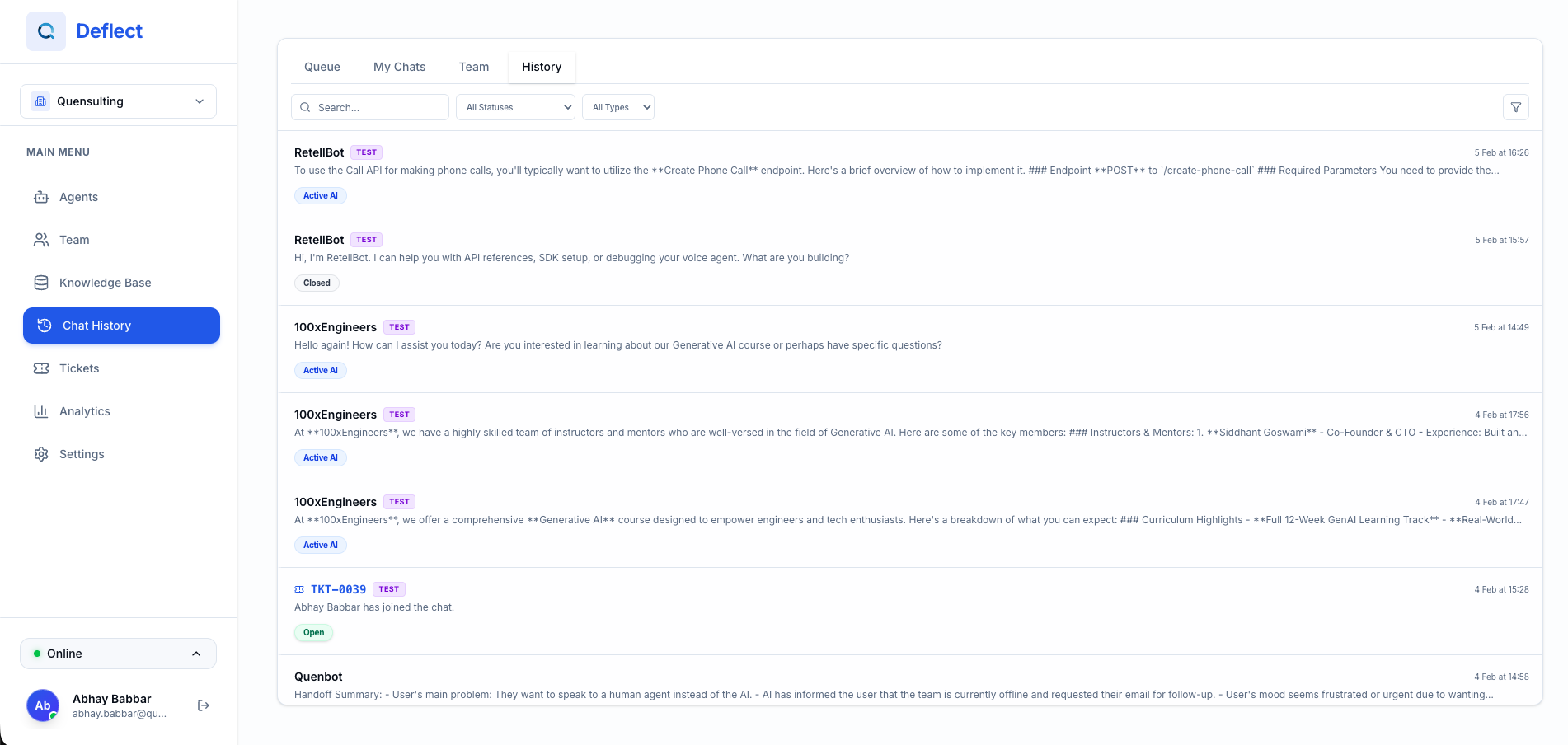
The **Chat History** page is your central hub for reviewing all conversations — both AI-handled and human-assisted. You can search, filter, and open any conversation for detailed review.
 ## Viewing Conversations
Navigate to **History** from the sidebar. You'll see a list of all conversations with:
* **Status** — Active (AI), Waiting for Human, Active (Human), Awaiting Offline Info, or Closed.
* **Chatbot** — Which agent handled the conversation.
* **Last Message** — A preview of the most recent message.
* **Date** — When the conversation started or was last updated.
* **Assigned Agent** — The human agent assigned (if any).
Click on any conversation to open the **Live Chat Panel** and view the full message history.
## Search & Filters
Use the controls at the top of the page to find specific conversations:
### Search
Type a keyword in the search bar to find conversations containing specific text.
### Filters
* **Status** — Filter by conversation status (Active, Waiting, Closed).
* **Agent** — Show only conversations assigned to a specific team member.
* **Chatbot** — Filter by which chatbot handled the conversation.
* **Date Range** — Use the date picker to narrow results to a specific time period.
Use the **Reset** button to clear all filters at once.
## Tabs
The page has tabs to quickly switch between conversation types:
* **All** — Every conversation.
* **Active** — Conversations currently in progress (AI or human).
* **Waiting** — Conversations waiting for a human agent.
* **Closed** — Ended conversations.
## Assigning Conversations
You can assign a conversation to yourself directly from the list:
1. Find the conversation.
2. Click **Assign to me**.
3. The conversation will appear in your assigned queue.
You can also assign conversations to other team members from within the Live Chat Panel. See [Live Chat](/live-chat) for details.
## Viewing Conversations
Navigate to **History** from the sidebar. You'll see a list of all conversations with:
* **Status** — Active (AI), Waiting for Human, Active (Human), Awaiting Offline Info, or Closed.
* **Chatbot** — Which agent handled the conversation.
* **Last Message** — A preview of the most recent message.
* **Date** — When the conversation started or was last updated.
* **Assigned Agent** — The human agent assigned (if any).
Click on any conversation to open the **Live Chat Panel** and view the full message history.
## Search & Filters
Use the controls at the top of the page to find specific conversations:
### Search
Type a keyword in the search bar to find conversations containing specific text.
### Filters
* **Status** — Filter by conversation status (Active, Waiting, Closed).
* **Agent** — Show only conversations assigned to a specific team member.
* **Chatbot** — Filter by which chatbot handled the conversation.
* **Date Range** — Use the date picker to narrow results to a specific time period.
Use the **Reset** button to clear all filters at once.
## Tabs
The page has tabs to quickly switch between conversation types:
* **All** — Every conversation.
* **Active** — Conversations currently in progress (AI or human).
* **Waiting** — Conversations waiting for a human agent.
* **Closed** — Ended conversations.
## Assigning Conversations
You can assign a conversation to yourself directly from the list:
1. Find the conversation.
2. Click **Assign to me**.
3. The conversation will appear in your assigned queue.
You can also assign conversations to other team members from within the Live Chat Panel. See [Live Chat](/live-chat) for details.