> ## Documentation Index
> Fetch the complete documentation index at: https://docs.deflect.in/llms.txt
> Use this file to discover all available pages before exploring further.
# Contacts
> Manage people who email, chat, or message you — merge duplicates and export
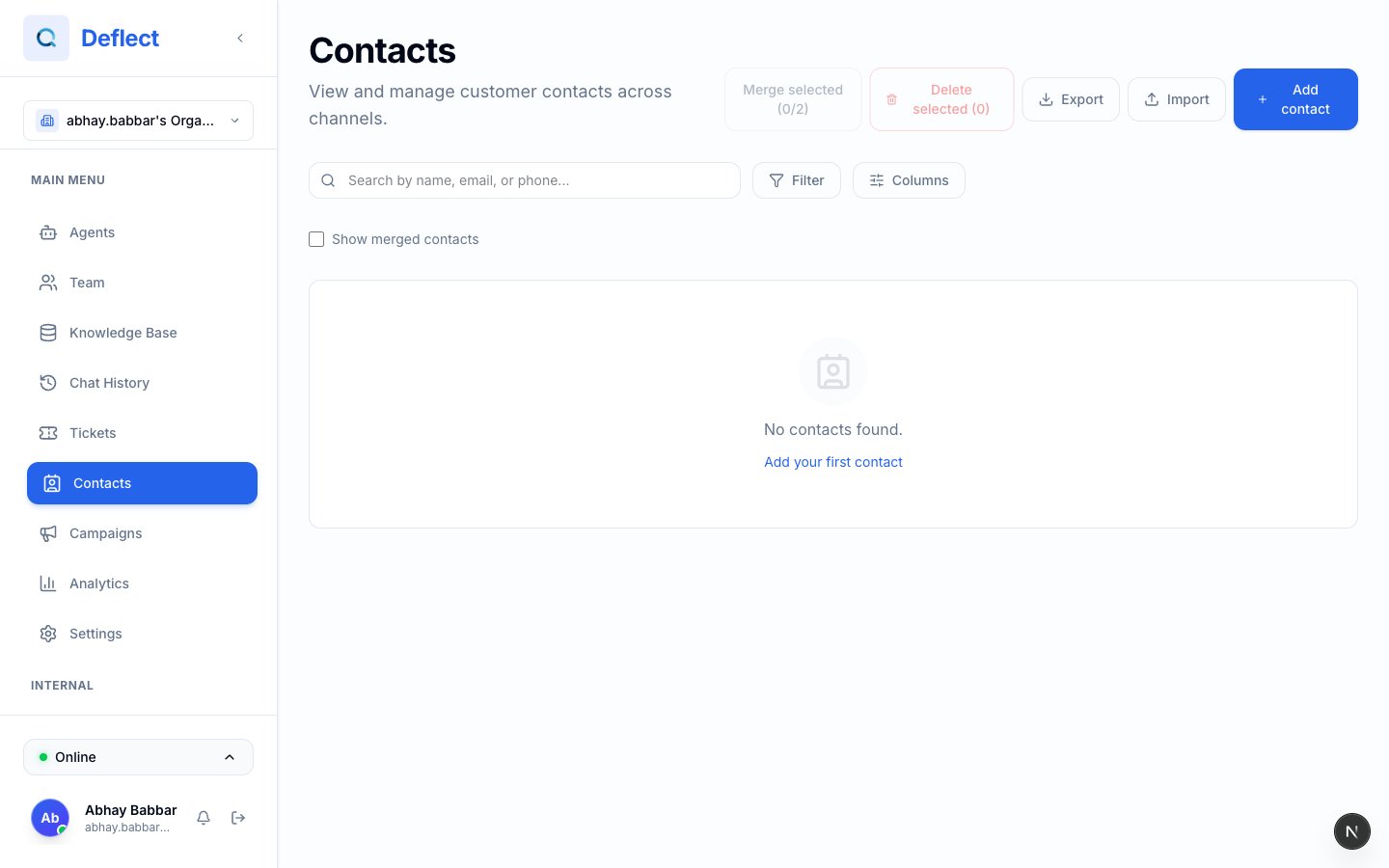
The **Contacts** hub brings together everyone who reaches you across **web chat**, **email**, and **WhatsApp** so your team sees one profile per person whenever Deflect can match their identity.
 ## Why contacts matter
| Use case | How contacts help |
| ------------------- | -------------------------------------------------------------- |
| **Support context** | See past conversations and tickets for the same person |
| **Campaigns** | Target the right audience for email or WhatsApp outreach |
| **Data hygiene** | Merge duplicates so one person is not split across two records |
| **CRM export** | Download a CSV for your CRM or reporting tools |
When someone messages you on WhatsApp or email, Deflect can **automatically link** the conversation to an existing contact when it recognizes their phone number or email.
## Viewing and searching contacts
1. Open **Contacts** from the sidebar.
2. Use **search** to find someone by name, email, or phone.
3. Click a row to open the **contact profile** — conversation history, custom fields, and merge history.
## Merging duplicates
Sometimes the same customer appears twice — different email typos, or separate web and WhatsApp identities.
On the Contacts list, check the boxes next to **two** records you want to combine.
Click **Merge selected (2/2)** in the top bar.
If name, email, or phone conflict, pick which value becomes the primary record.
The secondary contact is merged into the primary. Conversation history moves with it.
You can also start a merge from a **contact profile** by choosing another contact to merge in.
### Undo a merge
If you merged the wrong records, open the primary contact's profile and use **Unmerge** on a previously merged contact. You can restore the secondary record with or without carrying over shared history — follow the prompts in the dashboard.
## Bulk delete
Select one or more contacts (or use **select all** across pages), then **Delete selected**. Use this to clean up test data or comply with your retention policy.
Deleting contacts is permanent. Export a backup first if you are unsure.
## Export to CSV
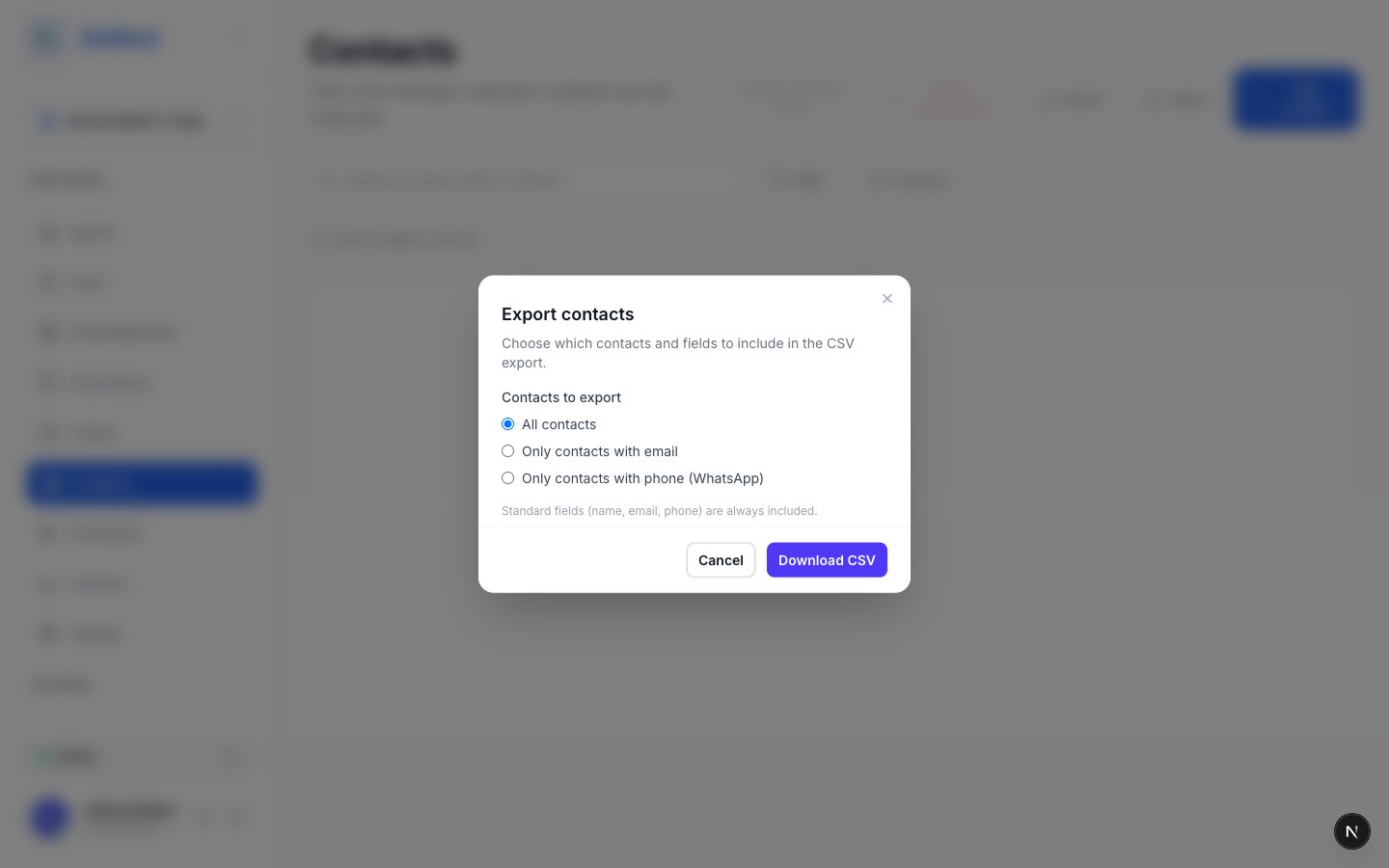
On the Contacts page, click **Export**.
Include standard fields (name, email, phone) and any **custom contact fields** you want in the file.
Export everyone, or only contacts with an email address, or only contacts with a phone number (useful before a WhatsApp campaign).
Save the CSV and import it into your CRM or spreadsheet.
## Why contacts matter
| Use case | How contacts help |
| ------------------- | -------------------------------------------------------------- |
| **Support context** | See past conversations and tickets for the same person |
| **Campaigns** | Target the right audience for email or WhatsApp outreach |
| **Data hygiene** | Merge duplicates so one person is not split across two records |
| **CRM export** | Download a CSV for your CRM or reporting tools |
When someone messages you on WhatsApp or email, Deflect can **automatically link** the conversation to an existing contact when it recognizes their phone number or email.
## Viewing and searching contacts
1. Open **Contacts** from the sidebar.
2. Use **search** to find someone by name, email, or phone.
3. Click a row to open the **contact profile** — conversation history, custom fields, and merge history.
## Merging duplicates
Sometimes the same customer appears twice — different email typos, or separate web and WhatsApp identities.
On the Contacts list, check the boxes next to **two** records you want to combine.
Click **Merge selected (2/2)** in the top bar.
If name, email, or phone conflict, pick which value becomes the primary record.
The secondary contact is merged into the primary. Conversation history moves with it.
You can also start a merge from a **contact profile** by choosing another contact to merge in.
### Undo a merge
If you merged the wrong records, open the primary contact's profile and use **Unmerge** on a previously merged contact. You can restore the secondary record with or without carrying over shared history — follow the prompts in the dashboard.
## Bulk delete
Select one or more contacts (or use **select all** across pages), then **Delete selected**. Use this to clean up test data or comply with your retention policy.
Deleting contacts is permanent. Export a backup first if you are unsure.
## Export to CSV
On the Contacts page, click **Export**.
Include standard fields (name, email, phone) and any **custom contact fields** you want in the file.
Export everyone, or only contacts with an email address, or only contacts with a phone number (useful before a WhatsApp campaign).
Save the CSV and import it into your CRM or spreadsheet.
 ## Custom contact fields
Beyond built-in **name**, **email**, and **phone**, you can store organization-specific data — plan tier, region, account ID, lead source, and more.
### Create fields
1. Go to **Settings → Contact Fields**.
2. Add a field with a **label** (what humans see) and a stable **key** (used in campaigns and exports).
3. Choose a **type** — text, number, date, dropdown, checkbox, URL, etc.
| Type | Example use |
| ------------ | ---------------------------------------- |
| **Text** | Account ID, external CRM ID |
| **Select** | Plan tier (Free / Pro / Enterprise) |
| **Date** | Renewal or onboarding date |
| **Checkbox** | Marketing consent captured |
| **URL** | Link to customer account in your product |
Built-in names like `name`, `email`, and `phone` are reserved — use different keys for custom fields.
### Where field values appear
* On each **contact profile** (editable by your team).
* In **email and WhatsApp campaigns** as personalization tokens (with fallback text if a value is missing).
* In **CSV exports**.
Define contact fields before your first campaign so personalization tokens are consistent from day one.
## Related guides
* [Email campaigns](/email-campaigns) — send to contact audiences.
* [WhatsApp integration](/whatsapp-integration) — inbound WhatsApp links to contacts by phone.
* [Tickets](/tickets) — tickets show linked contact details when available.
## Custom contact fields
Beyond built-in **name**, **email**, and **phone**, you can store organization-specific data — plan tier, region, account ID, lead source, and more.
### Create fields
1. Go to **Settings → Contact Fields**.
2. Add a field with a **label** (what humans see) and a stable **key** (used in campaigns and exports).
3. Choose a **type** — text, number, date, dropdown, checkbox, URL, etc.
| Type | Example use |
| ------------ | ---------------------------------------- |
| **Text** | Account ID, external CRM ID |
| **Select** | Plan tier (Free / Pro / Enterprise) |
| **Date** | Renewal or onboarding date |
| **Checkbox** | Marketing consent captured |
| **URL** | Link to customer account in your product |
Built-in names like `name`, `email`, and `phone` are reserved — use different keys for custom fields.
### Where field values appear
* On each **contact profile** (editable by your team).
* In **email and WhatsApp campaigns** as personalization tokens (with fallback text if a value is missing).
* In **CSV exports**.
Define contact fields before your first campaign so personalization tokens are consistent from day one.
## Related guides
* [Email campaigns](/email-campaigns) — send to contact audiences.
* [WhatsApp integration](/whatsapp-integration) — inbound WhatsApp links to contacts by phone.
* [Tickets](/tickets) — tickets show linked contact details when available.