> ## Documentation Index
> Fetch the complete documentation index at: https://docs.deflect.in/llms.txt
> Use this file to discover all available pages before exploring further.
# Create Chat Agent
> Learn how to create and manage your AI agents
An **agent** is the AI assistant your customers talk to. You can run agents on your **website**, over **email**, or on **WhatsApp** — each channel type has its own setup steps after creation.
## Choose a channel
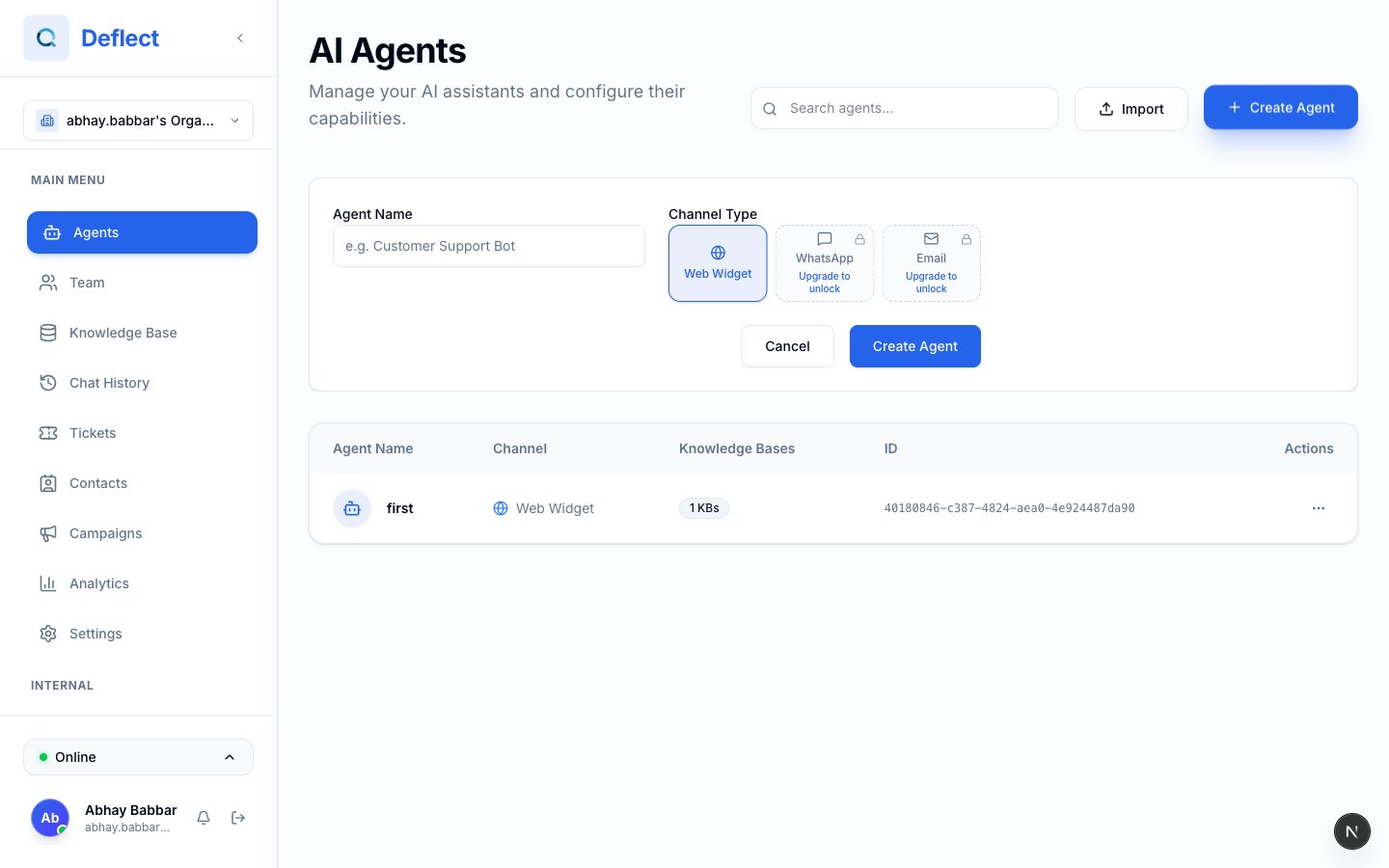
When you create an agent, pick the channel it will serve:
| Channel | Best for | Plan requirement |
| ------------ | ------------------------------------- | ----------------- |
| **Web** | Website chat widget | All plans |
| **Email** | Inbound support email with AI replies | Starter and above |
| **WhatsApp** | WhatsApp Business messaging | Starter and above |
If Email or WhatsApp is locked on your plan, the dashboard prompts you to upgrade from **Settings → Billing**.
 ### Email agents — footer required
Email agents must include a **footer** (disclaimer, unsubscribe line, company address, etc.) when you create them. This footer is appended to outbound email replies. You can refine it later in the agent editor.
## Creating a new agent
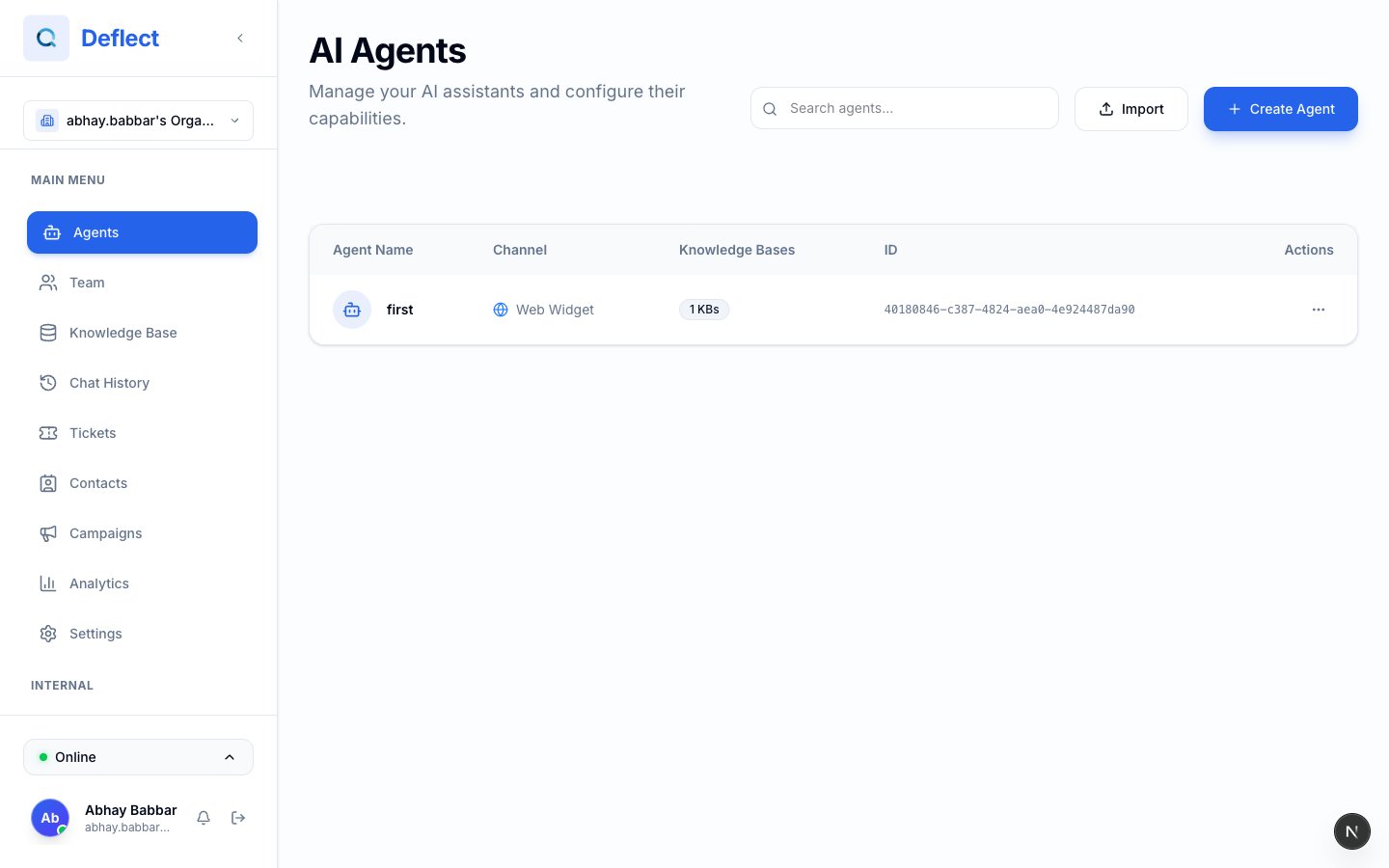
Click **Agents** in the sidebar.
Click **+ Create Agent**, enter a name (e.g. "Website Support"), choose a **channel**, and confirm.
Click the new agent to configure persona, knowledge, and tools.
### Email agents — footer required
Email agents must include a **footer** (disclaimer, unsubscribe line, company address, etc.) when you create them. This footer is appended to outbound email replies. You can refine it later in the agent editor.
## Creating a new agent
Click **Agents** in the sidebar.
Click **+ Create Agent**, enter a name (e.g. "Website Support"), choose a **channel**, and confirm.
Click the new agent to configure persona, knowledge, and tools.
 ## Agent configuration
### Persona and instructions
Use the **System prompt** to define who the agent is, its tone, and what it should escalate. See [Prompt engineering](/prompt-engineering) for tips.
### Model selection
| Setting | What it does |
| --------------- | ------------------------------------------------------------------------ |
| **Model** | Which AI model powers replies — affects quality, speed, and credit usage |
| **Temperature** | Lower = more consistent; higher = more varied |
| **Max tokens** | Maximum length of each reply |
Which models you can choose depends on your plan.
### Welcome message
* **Static** — A fixed greeting you write.
* **Dynamic** — An AI-generated greeting that can vary.
### Language
See [Set language](/set-language) for fixed vs. dynamic multilingual behavior.
### Knowledge base
Upload files and web sources in **Knowledge Base** first, wait until they are **ready**, then **link** them to the agent from the agent editor. See [Knowledge base](/knowledge-base).
### Tools and capabilities
| Tool | Purpose | |
| -------------------- | ---------------------------------- | ------------------------------------- |
| **Human handoff** | Escalate to a live agent | [Human handoff](/human-handoff) |
| **End chat** | Let the agent close a conversation | |
| **Custom functions** | Call your own APIs | [Custom functions](/custom-functions) |
### Post-chat analysis
Automatically summarize conversations after they end. See [Post-chat analysis](/post-chat-analysis).
### Auto-close
Close conversations after a period of inactivity. Set the timeout in minutes from the agent editor.
### WhatsApp-specific settings
For WhatsApp agents, configure:
* **Linked phone numbers** — Which connected WhatsApp numbers route to this agent.
* **Dormancy and reopen rules** — How long before inactive chats sleep or close.
* **Response style** — **Single message** or **Multiple messages** (up to four short bubbles, like a natural WhatsApp chat).
See [WhatsApp integration](/whatsapp-integration) for connecting numbers.
## Managing agents
From the **Agents** page you can:
* **Rename** — ⋯ menu → Rename
* **Duplicate** — Copy configuration to a new agent
* **Export / Import** — Back up or move configs — [Agent import & export](/agent-import-export)
* **Delete** — Permanently remove an agent
Deleting an agent cannot be undone. Past conversations stay in history, but the agent configuration is lost.
## Next steps by channel
Embed the widget on your site.
Set up sending domain and branding.
Connect a WhatsApp number.
## Agent configuration
### Persona and instructions
Use the **System prompt** to define who the agent is, its tone, and what it should escalate. See [Prompt engineering](/prompt-engineering) for tips.
### Model selection
| Setting | What it does |
| --------------- | ------------------------------------------------------------------------ |
| **Model** | Which AI model powers replies — affects quality, speed, and credit usage |
| **Temperature** | Lower = more consistent; higher = more varied |
| **Max tokens** | Maximum length of each reply |
Which models you can choose depends on your plan.
### Welcome message
* **Static** — A fixed greeting you write.
* **Dynamic** — An AI-generated greeting that can vary.
### Language
See [Set language](/set-language) for fixed vs. dynamic multilingual behavior.
### Knowledge base
Upload files and web sources in **Knowledge Base** first, wait until they are **ready**, then **link** them to the agent from the agent editor. See [Knowledge base](/knowledge-base).
### Tools and capabilities
| Tool | Purpose | |
| -------------------- | ---------------------------------- | ------------------------------------- |
| **Human handoff** | Escalate to a live agent | [Human handoff](/human-handoff) |
| **End chat** | Let the agent close a conversation | |
| **Custom functions** | Call your own APIs | [Custom functions](/custom-functions) |
### Post-chat analysis
Automatically summarize conversations after they end. See [Post-chat analysis](/post-chat-analysis).
### Auto-close
Close conversations after a period of inactivity. Set the timeout in minutes from the agent editor.
### WhatsApp-specific settings
For WhatsApp agents, configure:
* **Linked phone numbers** — Which connected WhatsApp numbers route to this agent.
* **Dormancy and reopen rules** — How long before inactive chats sleep or close.
* **Response style** — **Single message** or **Multiple messages** (up to four short bubbles, like a natural WhatsApp chat).
See [WhatsApp integration](/whatsapp-integration) for connecting numbers.
## Managing agents
From the **Agents** page you can:
* **Rename** — ⋯ menu → Rename
* **Duplicate** — Copy configuration to a new agent
* **Export / Import** — Back up or move configs — [Agent import & export](/agent-import-export)
* **Delete** — Permanently remove an agent
Deleting an agent cannot be undone. Past conversations stay in history, but the agent configuration is lost.
## Next steps by channel
Embed the widget on your site.
Set up sending domain and branding.
Connect a WhatsApp number.