> ## Documentation Index
> Fetch the complete documentation index at: https://docs.deflect.in/llms.txt
> Use this file to discover all available pages before exploring further.
# Email campaigns
> Send personalized email outreach to your contact audience
**Email campaigns** let you message groups of contacts from Deflect — with personalization, delivery tracking, and safe preview before you send.
 ## Before you start
You need contacts with **email addresses**. Import or collect them through chat, tickets, and integrations. See [Contacts](/contacts).
Register a **marketing** sending domain under **Settings → Email Branding** and complete the DNS steps shown in the dashboard. Campaigns cannot send until your domain is verified.
For new domains, follow the warm-up guidance in Email Branding so deliverability stays healthy. See [Email branding](/email-branding).
## Create a campaign
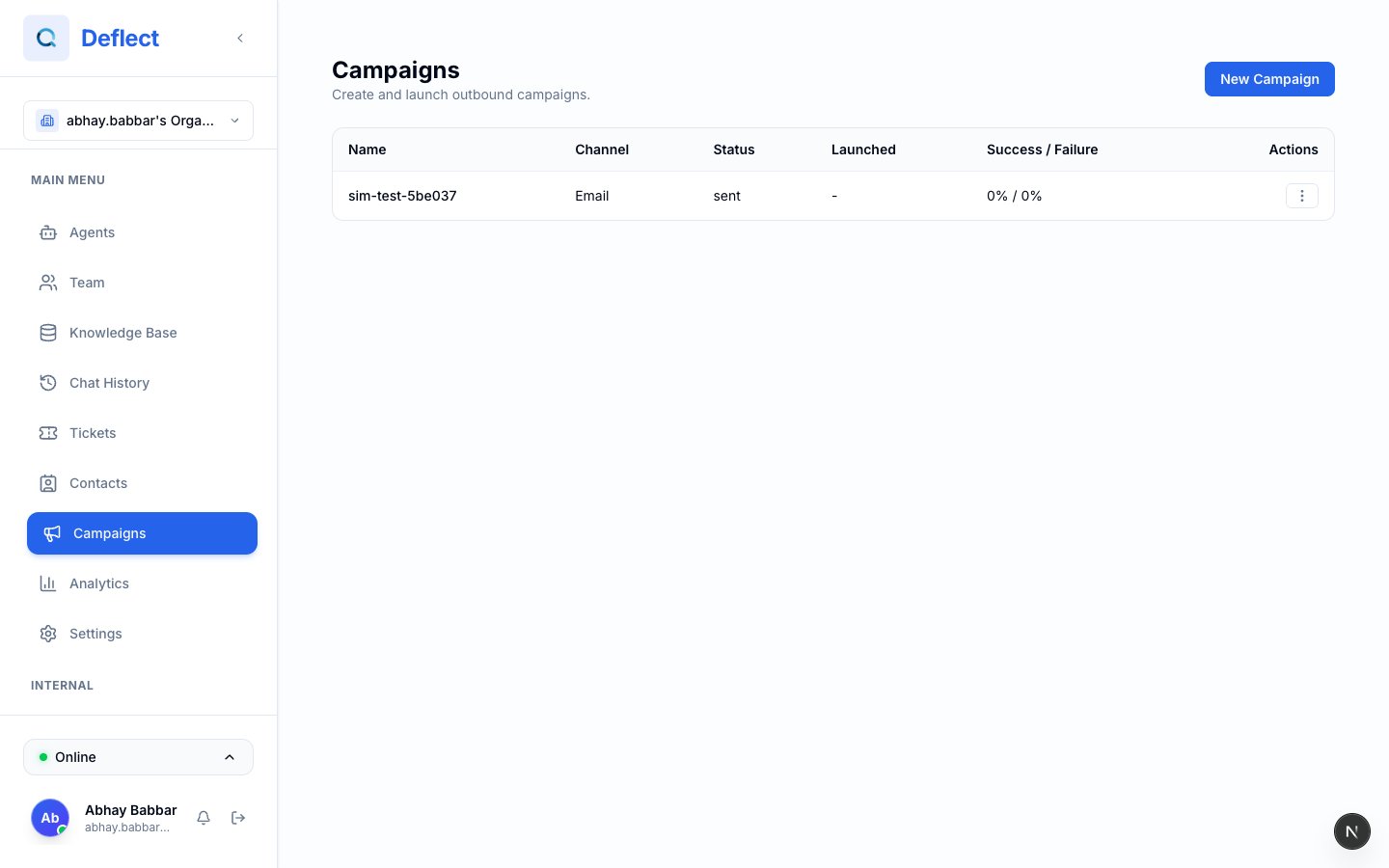
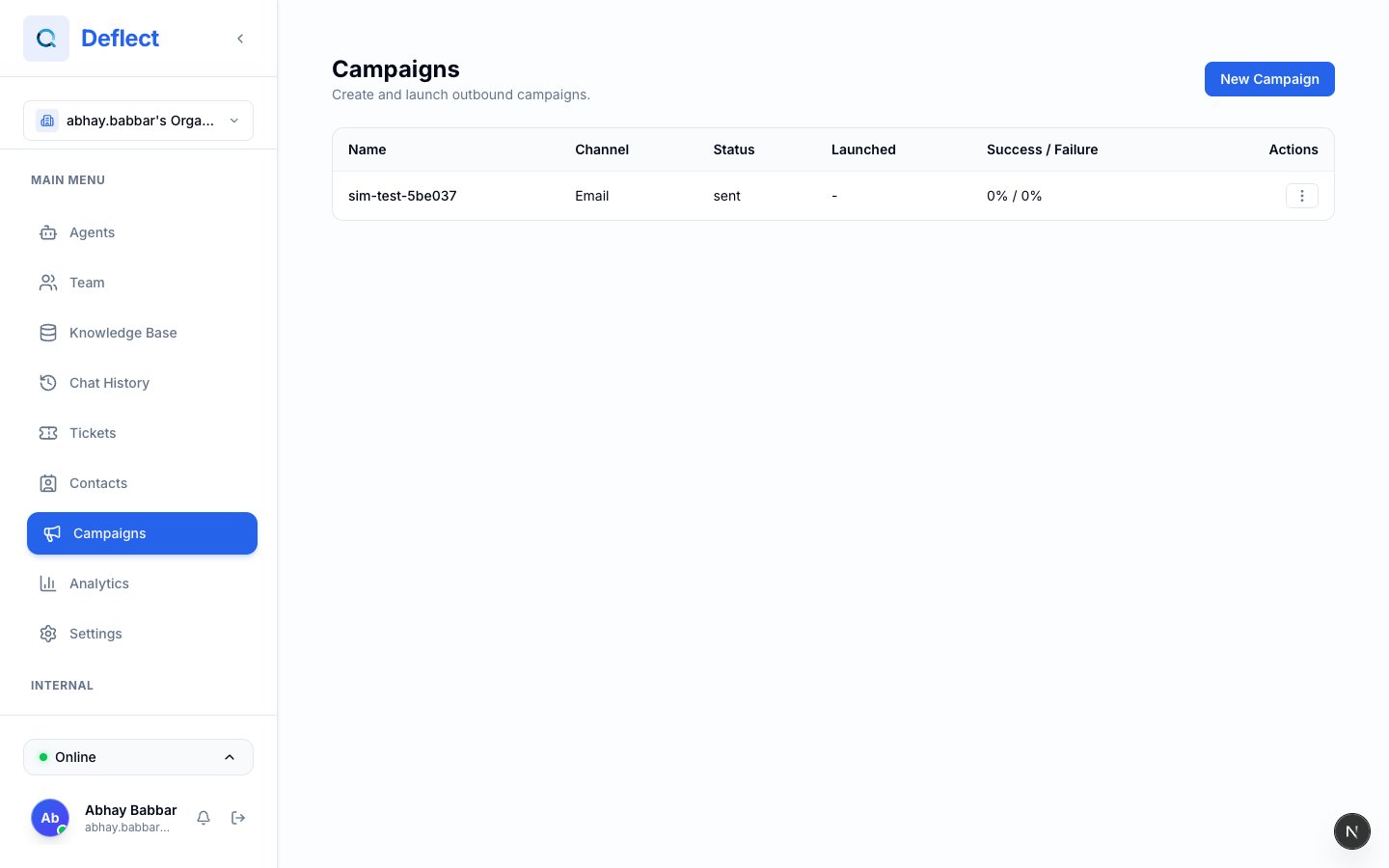
Click **Campaigns** in the sidebar, then **New campaign**.
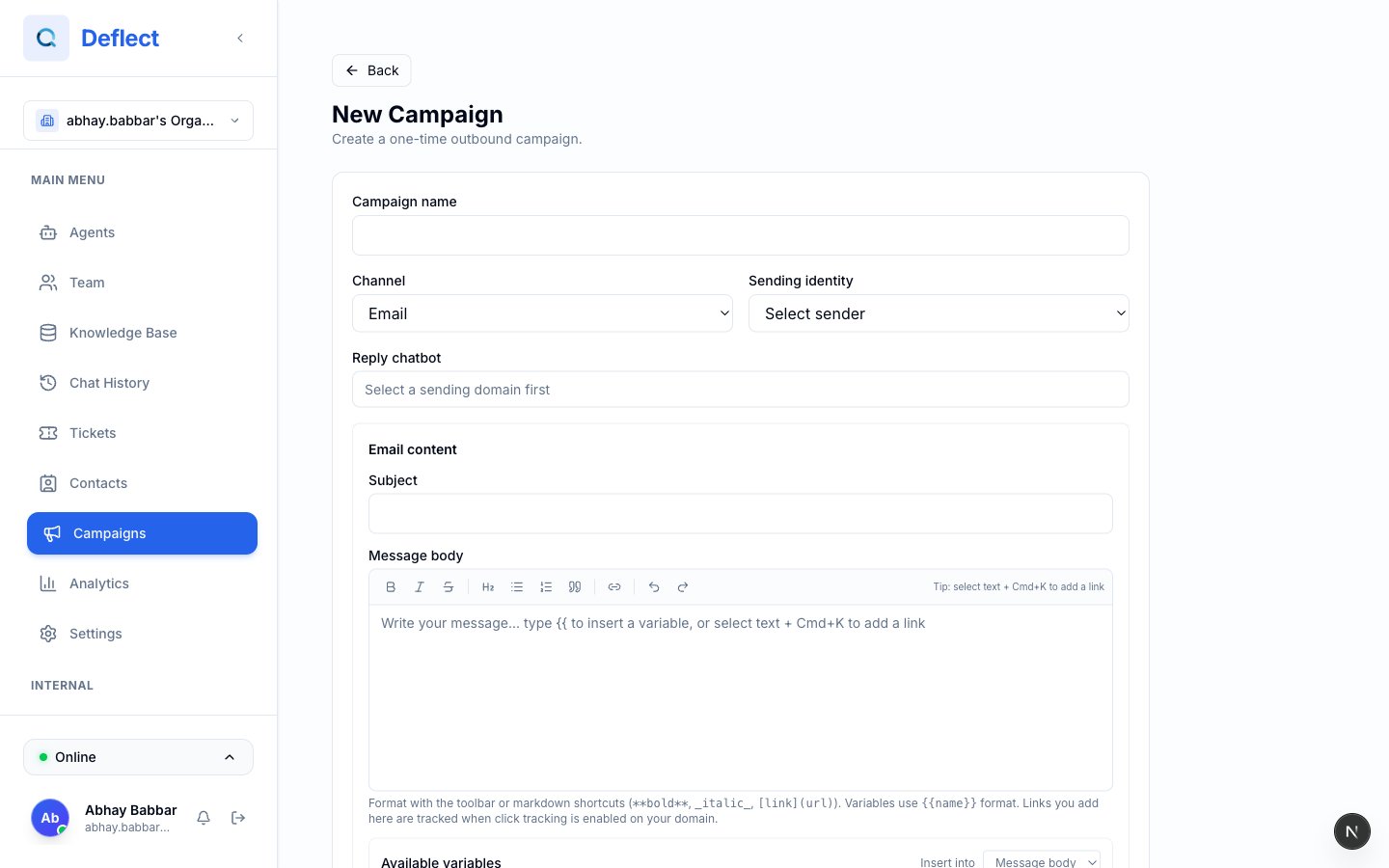
Give the campaign a clear internal name. Choose **Email** as the channel.
Select the **sender identity** (your verified marketing domain and from-address).
Choose which agent handles **replies** if recipients write back. Replies can route to live chat or follow your configured reply behavior.
Select contacts manually, or build a **filtered audience** (e.g. contacts where `plan = Enterprise` or `email` is not empty).
Compose your message. Use personalization tokens — see below.
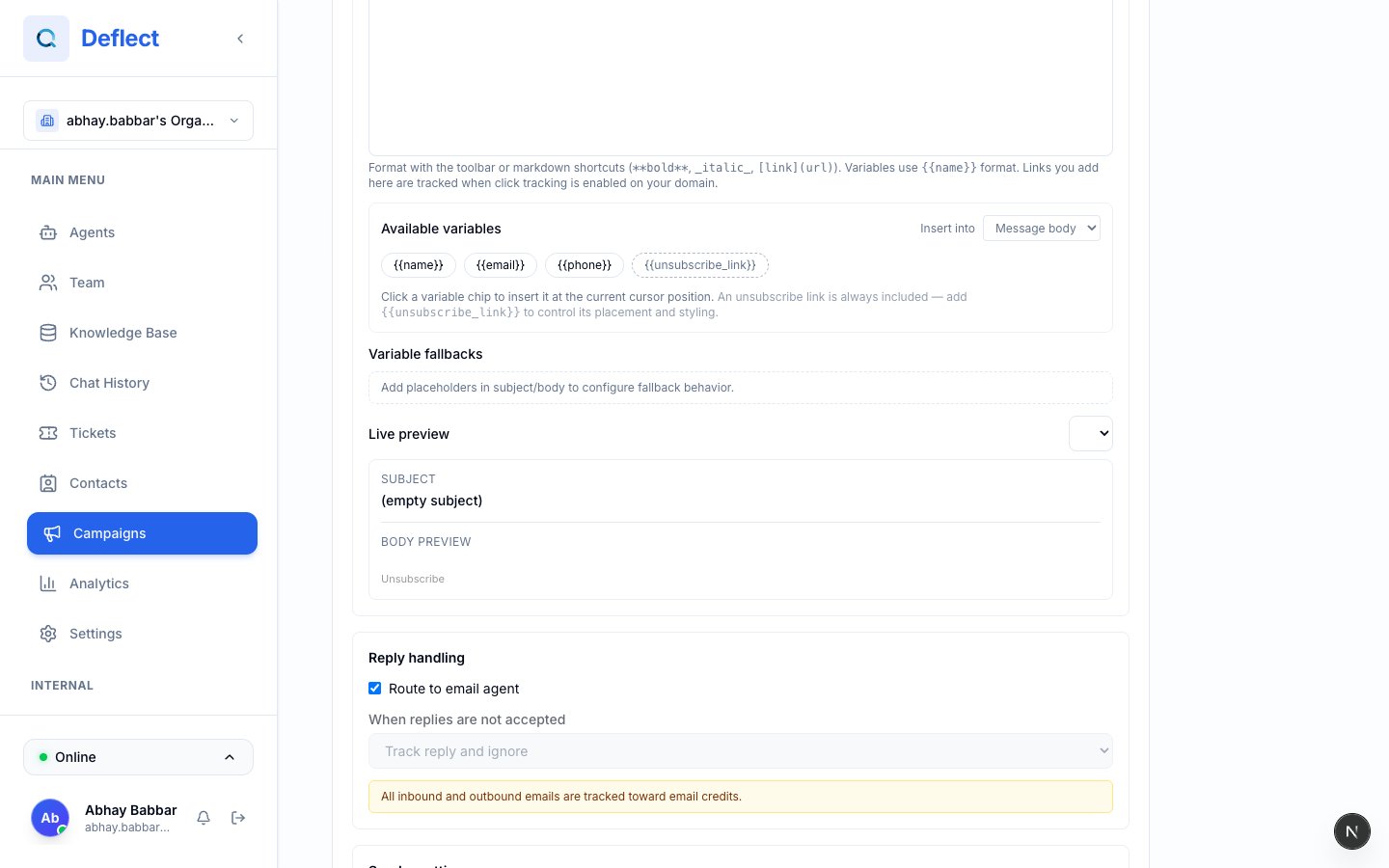
Use **Live preview** with a sample contact to see the rendered subject and body, including fallback text.
Schedule or send immediately. Watch progress on the campaign report.
## Before you start
You need contacts with **email addresses**. Import or collect them through chat, tickets, and integrations. See [Contacts](/contacts).
Register a **marketing** sending domain under **Settings → Email Branding** and complete the DNS steps shown in the dashboard. Campaigns cannot send until your domain is verified.
For new domains, follow the warm-up guidance in Email Branding so deliverability stays healthy. See [Email branding](/email-branding).
## Create a campaign
Click **Campaigns** in the sidebar, then **New campaign**.
Give the campaign a clear internal name. Choose **Email** as the channel.
Select the **sender identity** (your verified marketing domain and from-address).
Choose which agent handles **replies** if recipients write back. Replies can route to live chat or follow your configured reply behavior.
Select contacts manually, or build a **filtered audience** (e.g. contacts where `plan = Enterprise` or `email` is not empty).
Compose your message. Use personalization tokens — see below.
Use **Live preview** with a sample contact to see the rendered subject and body, including fallback text.
Schedule or send immediately. Watch progress on the campaign report.
 ## Personalization tokens
Insert placeholders in the **subject** or **body**. At send time, each contact's values replace the tokens.
| Token | Resolves to |
| ---------------------------------- | ---------------------------------- |
| `{{name}}` | Contact's name |
| `{{email}}` | Contact's email |
| `{{phone}}` | Contact's phone |
| `{{custom_attributes.your_field}}` | A custom contact field you created |
Click a **variable chip** in the editor to insert it at your cursor. Choose whether you are inserting into **Subject** or **Message body**.
### Fallbacks
For each token you use, configure a **fallback** under variable settings:
* **Use contact field** — Pull from a contact field; if empty, use your fallback text (e.g. `"there"` for `{{name}}`).
* **Use static value** — Always use a fixed string you provide.
The editor shows **diagnostics** — for example, how many contacts are missing a name and will get the fallback.
## Personalization tokens
Insert placeholders in the **subject** or **body**. At send time, each contact's values replace the tokens.
| Token | Resolves to |
| ---------------------------------- | ---------------------------------- |
| `{{name}}` | Contact's name |
| `{{email}}` | Contact's email |
| `{{phone}}` | Contact's phone |
| `{{custom_attributes.your_field}}` | A custom contact field you created |
Click a **variable chip** in the editor to insert it at your cursor. Choose whether you are inserting into **Subject** or **Message body**.
### Fallbacks
For each token you use, configure a **fallback** under variable settings:
* **Use contact field** — Pull from a contact field; if empty, use your fallback text (e.g. `"there"` for `{{name}}`).
* **Use static value** — Always use a fixed string you provide.
The editor shows **diagnostics** — for example, how many contacts are missing a name and will get the fallback.
 ## Reply handling
When creating an email campaign, decide what happens if someone replies:
| Option | Behavior |
| ------------------------- | --------------------------------------------------------------- |
| **Accept replies** | Replies open as conversations your team can handle in live chat |
| **Do not accept replies** | Choose to ignore replies or send a static auto-response |
Match this to your campaign type — marketing blasts often use a no-reply or auto-reply path; nurture sequences often accept replies.
## After you send
Open the campaign to see:
* **Progress** — how many messages sent, pending, or failed.
* **Errors** — addresses that bounced or were skipped (fix data in Contacts and retry if needed).
## Reply handling
When creating an email campaign, decide what happens if someone replies:
| Option | Behavior |
| ------------------------- | --------------------------------------------------------------- |
| **Accept replies** | Replies open as conversations your team can handle in live chat |
| **Do not accept replies** | Choose to ignore replies or send a static auto-response |
Match this to your campaign type — marketing blasts often use a no-reply or auto-reply path; nurture sequences often accept replies.
## After you send
Open the campaign to see:
* **Progress** — how many messages sent, pending, or failed.
* **Errors** — addresses that bounced or were skipped (fix data in Contacts and retry if needed).
 ## WhatsApp campaigns
Some workspaces also support **WhatsApp campaigns** using approved WhatsApp templates. If you see WhatsApp as a channel option when creating a campaign:
1. Connect and sync templates — [WhatsApp integration](/whatsapp-integration).
2. Pick a **template** approved by WhatsApp (required outside the 24-hour customer service window).
3. Map template variables to contact fields, same as email fallbacks.
4. Audience must include contacts with valid **phone numbers**.
WhatsApp template messages may incur carrier charges depending on template category and region.
## Tips for better deliverability
* Warm up new sending domains gradually.
* Avoid spam trigger words and broken personalization (`Hello {{name}}` with no fallback).
* Segment audiences instead of blasting your entire list.
* Test with an internal contact list before a full launch.
## Related guides
* [Contacts](/contacts) — audiences and custom fields.
* [Email branding](/email-branding) — domains, DNS, warm-up.
* [Settings & billing](/settings) — email allowance and top-ups.
## WhatsApp campaigns
Some workspaces also support **WhatsApp campaigns** using approved WhatsApp templates. If you see WhatsApp as a channel option when creating a campaign:
1. Connect and sync templates — [WhatsApp integration](/whatsapp-integration).
2. Pick a **template** approved by WhatsApp (required outside the 24-hour customer service window).
3. Map template variables to contact fields, same as email fallbacks.
4. Audience must include contacts with valid **phone numbers**.
WhatsApp template messages may incur carrier charges depending on template category and region.
## Tips for better deliverability
* Warm up new sending domains gradually.
* Avoid spam trigger words and broken personalization (`Hello {{name}}` with no fallback).
* Segment audiences instead of blasting your entire list.
* Test with an internal contact list before a full launch.
## Related guides
* [Contacts](/contacts) — audiences and custom fields.
* [Email branding](/email-branding) — domains, DNS, warm-up.
* [Settings & billing](/settings) — email allowance and top-ups.