> ## Documentation Index
> Fetch the complete documentation index at: https://docs.deflect.in/llms.txt
> Use this file to discover all available pages before exploring further.
# Integrations
> Connect Deflect with WhatsApp, helpdesks, and other tools
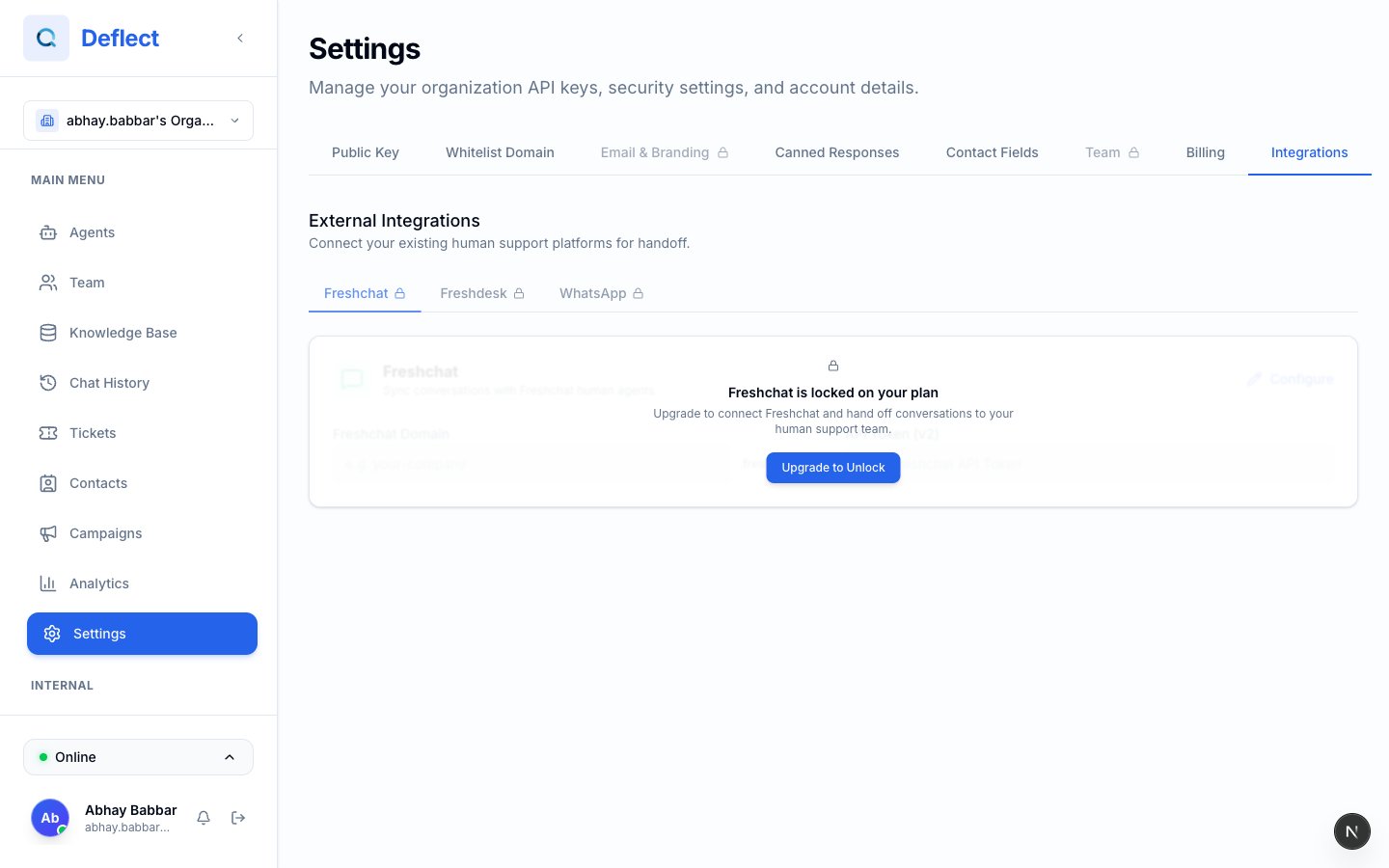
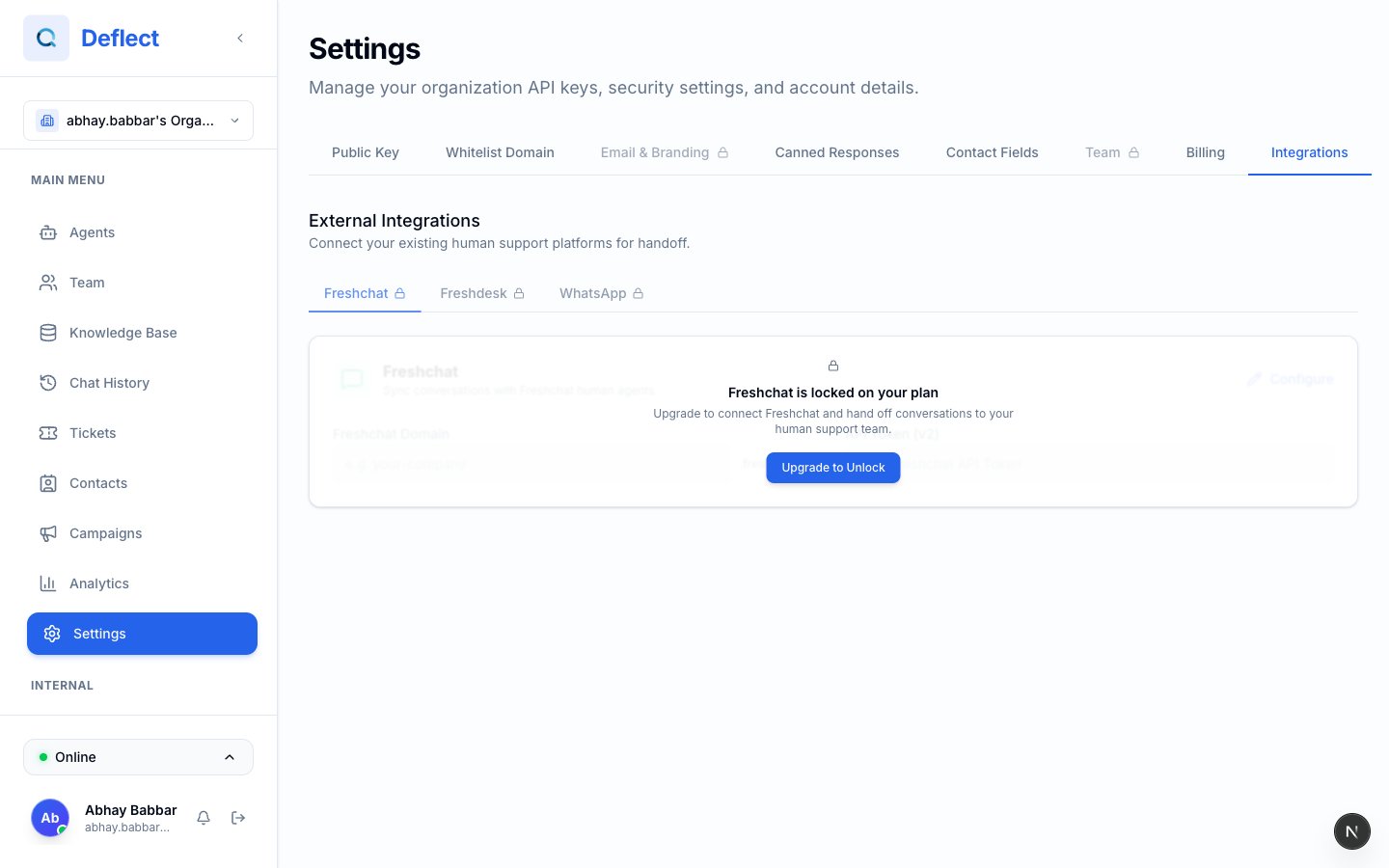
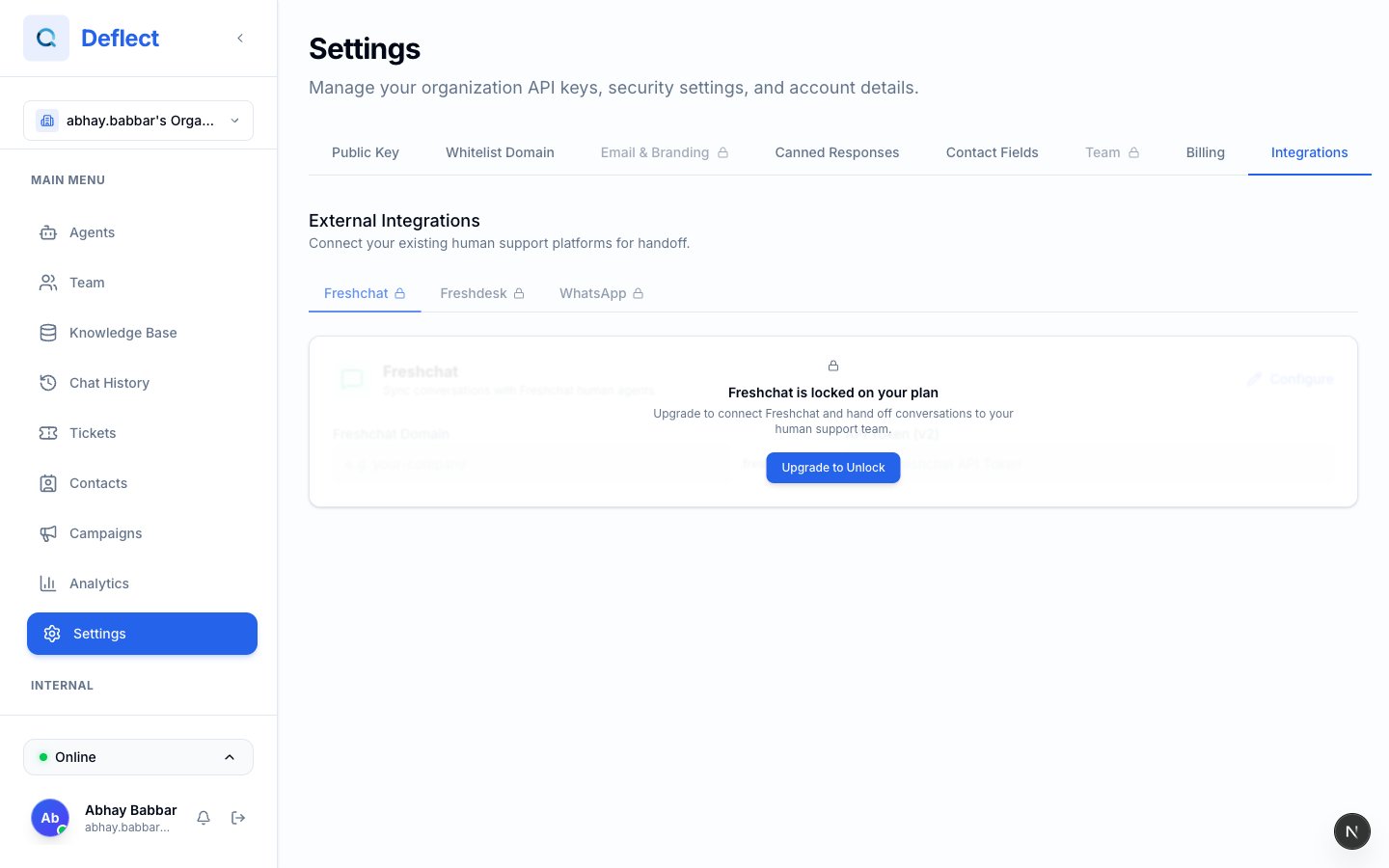
Integrations extend Deflect into the channels and tools your team already uses. Configure them from **Settings → Integrations**.
 ## WhatsApp Business
Connect WhatsApp so customers can message your AI agents on their phones. Deflect supports:
* **Meta Cloud API** — connect with Meta Business credentials
* **Plivo** — connect with Plivo Auth ID and token
* **Template sync** — pull approved WhatsApp templates for outbound messages
* **Test sends** — verify setup before go-live
* **Multi-bubble replies** — optional natural split into short messages
Step-by-step for Meta and Plivo, agent linking, templates, and troubleshooting.
## FreshChat
Route human handoffs to your existing [FreshChat](https://www.freshworks.com/live-chat-software/) workspace instead of Deflect live chat.
From FreshChat → Settings → API Tokens, copy your **API token**. Note your FreshChat **domain** (e.g. `yourcompany.freshchat.com`).
**Settings → Integrations → FreshChat** — enter token, domain, and optional channel ID. Save.
Agent editor → **Handoff** → enable **FreshChat**. Handoffs on that agent route to FreshChat.
## WhatsApp Business
Connect WhatsApp so customers can message your AI agents on their phones. Deflect supports:
* **Meta Cloud API** — connect with Meta Business credentials
* **Plivo** — connect with Plivo Auth ID and token
* **Template sync** — pull approved WhatsApp templates for outbound messages
* **Test sends** — verify setup before go-live
* **Multi-bubble replies** — optional natural split into short messages
Step-by-step for Meta and Plivo, agent linking, templates, and troubleshooting.
## FreshChat
Route human handoffs to your existing [FreshChat](https://www.freshworks.com/live-chat-software/) workspace instead of Deflect live chat.
From FreshChat → Settings → API Tokens, copy your **API token**. Note your FreshChat **domain** (e.g. `yourcompany.freshchat.com`).
**Settings → Integrations → FreshChat** — enter token, domain, and optional channel ID. Save.
Agent editor → **Handoff** → enable **FreshChat**. Handoffs on that agent route to FreshChat.
 Your FreshChat API token needs permission to create conversations and send messages.
## Freshdesk
Sync handoffs and tickets with [Freshdesk](https://www.freshworks.com/freshdesk/) so your helpdesk team stays in one place.
**Settings → Integrations → Freshdesk** — enter the credentials shown in the dashboard (API key, domain, and any webhook secret fields).
Agent editor → **Handoff** (or integrations section) → enable **Freshdesk** for agents that should create or update Freshdesk tickets.
Use a test Freshdesk project first so ticket fields and subjects match your workflow.
Your FreshChat API token needs permission to create conversations and send messages.
## Freshdesk
Sync handoffs and tickets with [Freshdesk](https://www.freshworks.com/freshdesk/) so your helpdesk team stays in one place.
**Settings → Integrations → Freshdesk** — enter the credentials shown in the dashboard (API key, domain, and any webhook secret fields).
Agent editor → **Handoff** (or integrations section) → enable **Freshdesk** for agents that should create or update Freshdesk tickets.
Use a test Freshdesk project first so ticket fields and subjects match your workflow.
 Field labels in the dashboard are always the source of truth — they may vary slightly between releases.
## Request another integration
Need a connector that is not listed? Email [sales@deflect.in](mailto:sales@deflect.in) with your stack (CRM, helpdesk, data warehouse) and expected volume.
## Related guides
* [WhatsApp integration](/whatsapp-integration)
* [Human handoff](/human-handoff)
* [Tickets](/tickets)
Field labels in the dashboard are always the source of truth — they may vary slightly between releases.
## Request another integration
Need a connector that is not listed? Email [sales@deflect.in](mailto:sales@deflect.in) with your stack (CRM, helpdesk, data warehouse) and expected volume.
## Related guides
* [WhatsApp integration](/whatsapp-integration)
* [Human handoff](/human-handoff)
* [Tickets](/tickets)