> ## Documentation Index
> Fetch the complete documentation index at: https://docs.deflect.in/llms.txt
> Use this file to discover all available pages before exploring further.
# Post-Chat Analysis
> Automatically extract insights and sentiment from completed conversations
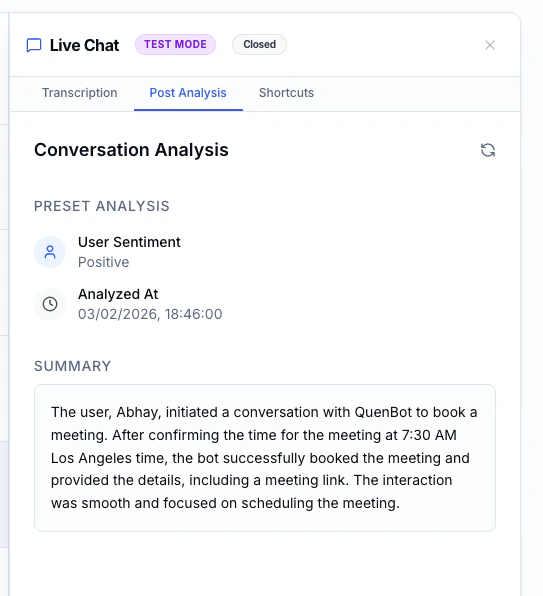
**Post-Chat Analysis** uses AI to automatically analyze conversations after they end. It can extract structured data, summarize the conversation, and assess customer sentiment — giving you actionable insights without manual review.
## How It Works
1. A conversation ends (closed by an agent or auto-closed).
2. The AI analyzes the full conversation.
3. It generates:
* **Summary** — A concise overview of what was discussed.
* **Sentiment** — The customer's overall mood (Positive, Neutral, Negative).
* **Extracted Data** — Custom fields you define (see below).
## Viewing Analysis Results
1. Open any completed conversation from the **Chat History** page.
2. In the **Live Chat Panel**, click the **Analysis** tab.
3. View the AI-generated summary, sentiment, and any extracted fields.
 ## Configuring Analysis Fields
You can define custom fields that the AI will extract from each conversation. This is configured per agent.
### Adding a Field
1. Open the **Agent Editor** for your chatbot.
2. Scroll to the **Post-Chat Analysis** section.
3. Click **Add Field**.
4. Configure the field:
| Setting | Description |
| --------------- | ------------------------------------------------------------------------------------------ |
| **Key** | A unique identifier (e.g., `issue_category`) |
| **Type** | `text`, `number`, `boolean`, or `enum` |
| **Description** | Instructions for the AI on what to extract (e.g., "The main category of the user's issue") |
| **Options** | For `enum` type only — list of allowed values (e.g., "Billing, Technical, General") |
### Example Fields
| Key | Type | Description |
| -------------------- | ------- | ----------------------------------------------------------- |
| `issue_category` | enum | Main category: Billing, Technical, General, Feature Request |
| `resolved` | boolean | Whether the user's issue was fully resolved |
| `product_mentioned` | text | The specific product or feature the user asked about |
| `satisfaction_score` | number | Estimated satisfaction from 1-10 based on conversation tone |
Well-written descriptions help the AI extract more accurate data. Be specific about what you want it to look for.
### Editing & Removing Fields
* Click on a field to edit its configuration.
* Click the delete icon to remove a field.
Changes to analysis fields apply to **future** conversations only. Previously analyzed conversations retain their original extracted data.
## Configuring Analysis Fields
You can define custom fields that the AI will extract from each conversation. This is configured per agent.
### Adding a Field
1. Open the **Agent Editor** for your chatbot.
2. Scroll to the **Post-Chat Analysis** section.
3. Click **Add Field**.
4. Configure the field:
| Setting | Description |
| --------------- | ------------------------------------------------------------------------------------------ |
| **Key** | A unique identifier (e.g., `issue_category`) |
| **Type** | `text`, `number`, `boolean`, or `enum` |
| **Description** | Instructions for the AI on what to extract (e.g., "The main category of the user's issue") |
| **Options** | For `enum` type only — list of allowed values (e.g., "Billing, Technical, General") |
### Example Fields
| Key | Type | Description |
| -------------------- | ------- | ----------------------------------------------------------- |
| `issue_category` | enum | Main category: Billing, Technical, General, Feature Request |
| `resolved` | boolean | Whether the user's issue was fully resolved |
| `product_mentioned` | text | The specific product or feature the user asked about |
| `satisfaction_score` | number | Estimated satisfaction from 1-10 based on conversation tone |
Well-written descriptions help the AI extract more accurate data. Be specific about what you want it to look for.
### Editing & Removing Fields
* Click on a field to edit its configuration.
* Click the delete icon to remove a field.
Changes to analysis fields apply to **future** conversations only. Previously analyzed conversations retain their original extracted data.