> ## Documentation Index
> Fetch the complete documentation index at: https://docs.deflect.in/llms.txt
> Use this file to discover all available pages before exploring further.
# Settings & Billing
> Manage your organization profile, subscription plan, credits, and account settings
The **Settings** page is your central hub for organization details, billing, API keys, integrations, and more. Open it from the sidebar.
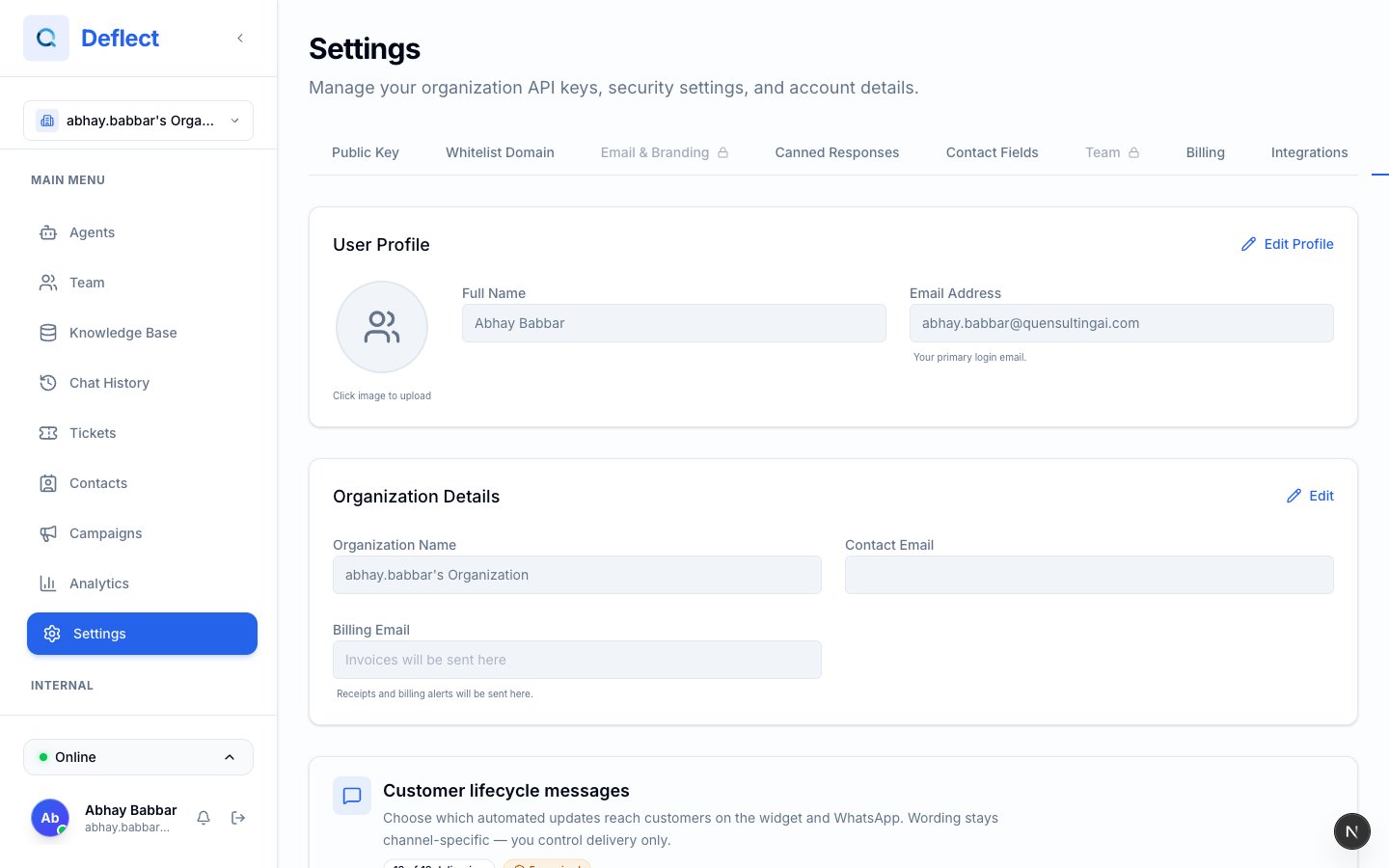 ## Profile
Update your personal account details:
* **Full Name** — How your name appears to teammates and in live chat.
* **Profile Picture** — Avatar shown in team presence and live chat.
## Organization
Organization-level settings (typically managed by an **Admin**):
* **Organization Name** — Displayed across the dashboard.
* **Contact Email** — Primary email for account communications.
* **Billing Email** — Optional separate address for invoices and billing notifications.
## Billing & Plans
Open **Settings → Billing** to see your current plan, usage, and upgrade options.
### Understanding your usage
| What you see | What it means |
| ------------------------ | ---------------------------------------------------------------------------------------------------------------- |
| **AI credits** | How much AI capacity remains this billing period. Each AI reply uses credits based on the model your agent uses. |
| **Top-up credits** | Extra AI credits you bought separately. These do not expire while you stay on a paid plan. |
| **Email allowance** | How many outbound emails (notifications, campaigns, etc.) your plan includes this period. |
| **Email top-up credits** | Extra email sends purchased separately (paid plans only). |
| **Storage** | Knowledge base storage used vs. your plan limit. |
## Profile
Update your personal account details:
* **Full Name** — How your name appears to teammates and in live chat.
* **Profile Picture** — Avatar shown in team presence and live chat.
## Organization
Organization-level settings (typically managed by an **Admin**):
* **Organization Name** — Displayed across the dashboard.
* **Contact Email** — Primary email for account communications.
* **Billing Email** — Optional separate address for invoices and billing notifications.
## Billing & Plans
Open **Settings → Billing** to see your current plan, usage, and upgrade options.
### Understanding your usage
| What you see | What it means |
| ------------------------ | ---------------------------------------------------------------------------------------------------------------- |
| **AI credits** | How much AI capacity remains this billing period. Each AI reply uses credits based on the model your agent uses. |
| **Top-up credits** | Extra AI credits you bought separately. These do not expire while you stay on a paid plan. |
| **Email allowance** | How many outbound emails (notifications, campaigns, etc.) your plan includes this period. |
| **Email top-up credits** | Extra email sends purchased separately (paid plans only). |
| **Storage** | Knowledge base storage used vs. your plan limit. |
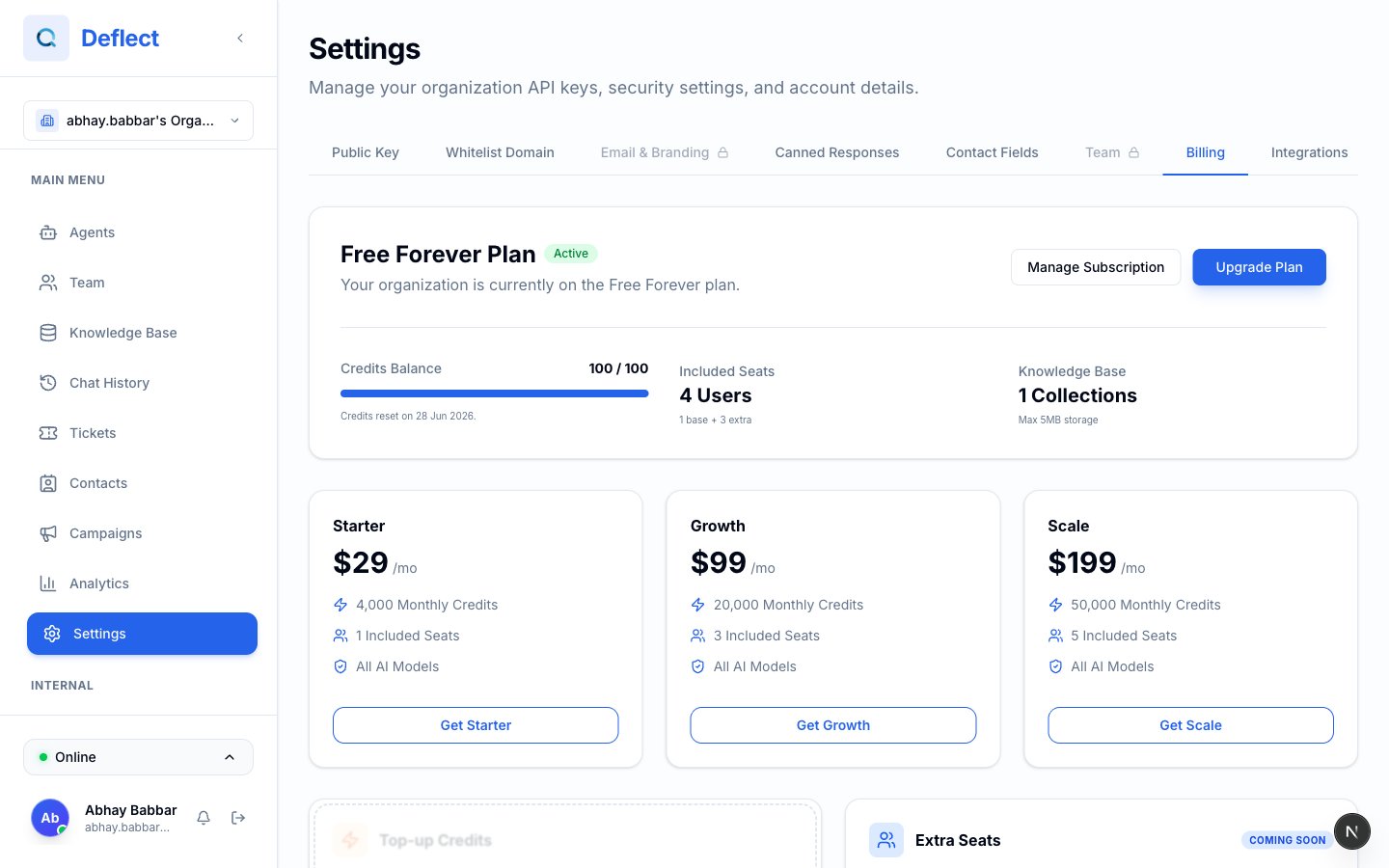 ### Plans at a glance
| Plan | Monthly AI credits | Team seats included | Monthly emails |
| ----------- | ------------------ | ------------------- | -------------- |
| **Free** | 100 | 1 | — |
| **Starter** | 4,000 | 1 | 1,000 |
| **Growth** | 20,000 | 3 | 5,000 |
| **Scale** | 50,000 | 5 | 20,000 |
Exact prices and feature limits are shown in the dashboard when you compare plans. Limits can include knowledge bases, web crawl pages, WhatsApp numbers, and more.
### Free plan
On the **Free** plan you receive **100 AI credits every 30 days**. Credits refresh automatically — you do not need to purchase a subscription for this allowance.
**Top-up credits are not available on the Free plan.** If you previously bought top-up credits on a paid plan and later downgrade, those top-ups are **saved** but **not usable** until you upgrade again.
### Upgrading or changing plans
1. Go to **Settings → Billing**.
2. Compare the plan cards (Starter, Growth, Scale).
3. Click **Upgrade** (or **Get \[plan name]** if you are on Free).
4. Complete checkout in the secure payment window.
When you upgrade mid-cycle, you are charged a **prorated** amount for the remainder of the current period and your new limits apply right away.
### Managing your subscription
Click **Manage Subscription** to open the billing portal where you can:
* Update your payment method.
* View invoices and payment history.
* Cancel or change your subscription.
If you cancel, you keep paid-plan access until the end of the current billing period, then move to the Free plan.
### Top-up credits (paid plans)
Need more AI capacity before your next renewal? Paid plans can buy one-time **top-up packs**:
| Pack | Credits | Price |
| ------ | ------- | ----- |
| Small | 1,000 | \$10 |
| Medium | 7,500 | \$50 |
| Large | 18,000 | \$100 |
**How top-ups work:**
* Your **monthly plan credits are used first**.
* When monthly credits run out, **top-up credits** are used automatically.
* Top-ups **do not expire** while you remain on a paid plan.
* If you downgrade to Free, top-ups are **locked** until you upgrade again.
### Plans at a glance
| Plan | Monthly AI credits | Team seats included | Monthly emails |
| ----------- | ------------------ | ------------------- | -------------- |
| **Free** | 100 | 1 | — |
| **Starter** | 4,000 | 1 | 1,000 |
| **Growth** | 20,000 | 3 | 5,000 |
| **Scale** | 50,000 | 5 | 20,000 |
Exact prices and feature limits are shown in the dashboard when you compare plans. Limits can include knowledge bases, web crawl pages, WhatsApp numbers, and more.
### Free plan
On the **Free** plan you receive **100 AI credits every 30 days**. Credits refresh automatically — you do not need to purchase a subscription for this allowance.
**Top-up credits are not available on the Free plan.** If you previously bought top-up credits on a paid plan and later downgrade, those top-ups are **saved** but **not usable** until you upgrade again.
### Upgrading or changing plans
1. Go to **Settings → Billing**.
2. Compare the plan cards (Starter, Growth, Scale).
3. Click **Upgrade** (or **Get \[plan name]** if you are on Free).
4. Complete checkout in the secure payment window.
When you upgrade mid-cycle, you are charged a **prorated** amount for the remainder of the current period and your new limits apply right away.
### Managing your subscription
Click **Manage Subscription** to open the billing portal where you can:
* Update your payment method.
* View invoices and payment history.
* Cancel or change your subscription.
If you cancel, you keep paid-plan access until the end of the current billing period, then move to the Free plan.
### Top-up credits (paid plans)
Need more AI capacity before your next renewal? Paid plans can buy one-time **top-up packs**:
| Pack | Credits | Price |
| ------ | ------- | ----- |
| Small | 1,000 | \$10 |
| Medium | 7,500 | \$50 |
| Large | 18,000 | \$100 |
**How top-ups work:**
* Your **monthly plan credits are used first**.
* When monthly credits run out, **top-up credits** are used automatically.
* Top-ups **do not expire** while you remain on a paid plan.
* If you downgrade to Free, top-ups are **locked** until you upgrade again.
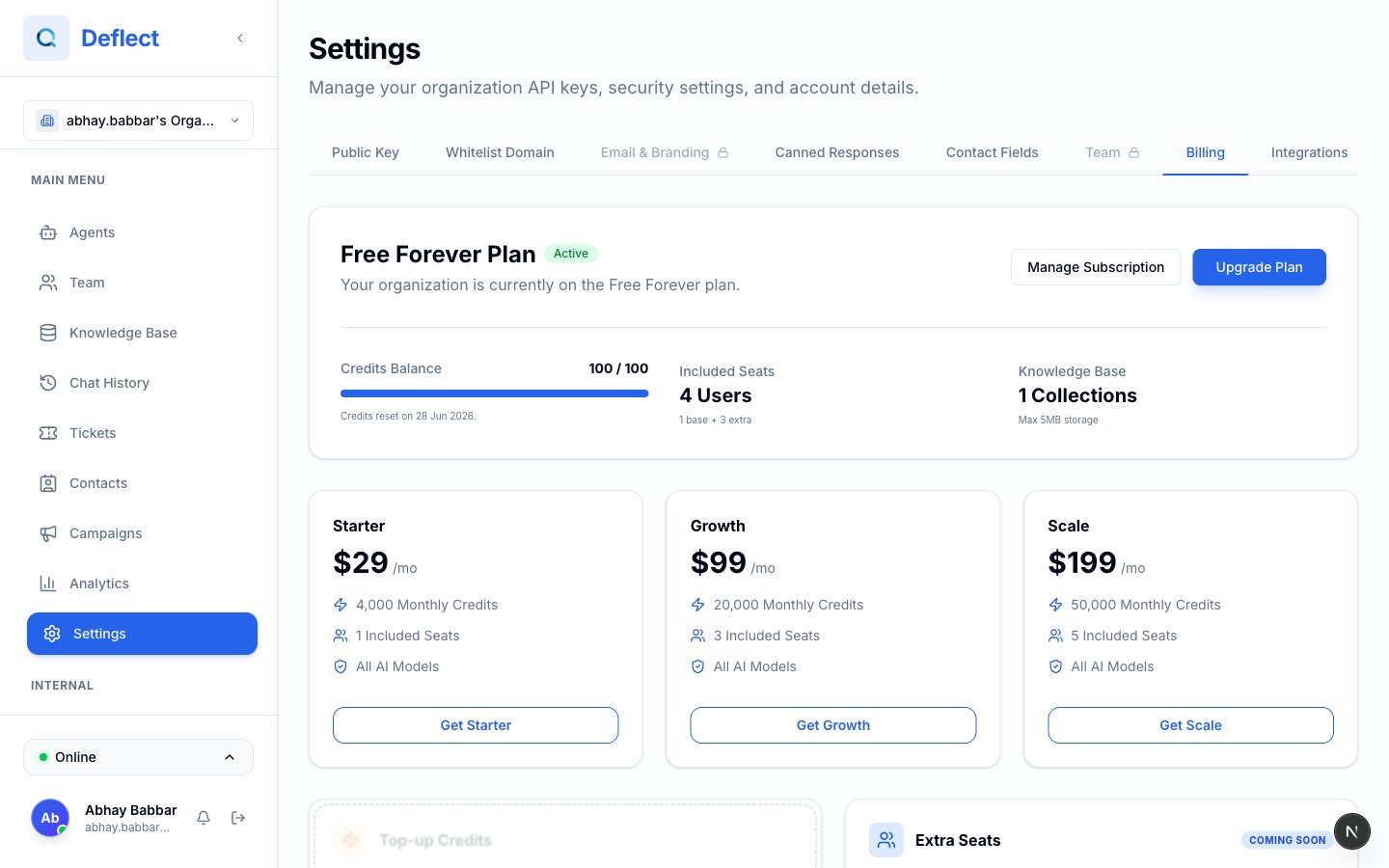 ### Email top-ups (paid plans)
If you send a lot of email (campaigns, notifications, ticket replies), you can buy extra email sends from the same Billing tab. Monthly plan emails are used first; email top-ups cover overflow.
### Extra seats
Additional team seats beyond what your plan includes are **coming soon**. For now, contact [support@quensultingai.com](mailto:support@quensultingai.com) if you need more seats than your plan provides.
## Customer lifecycle messages
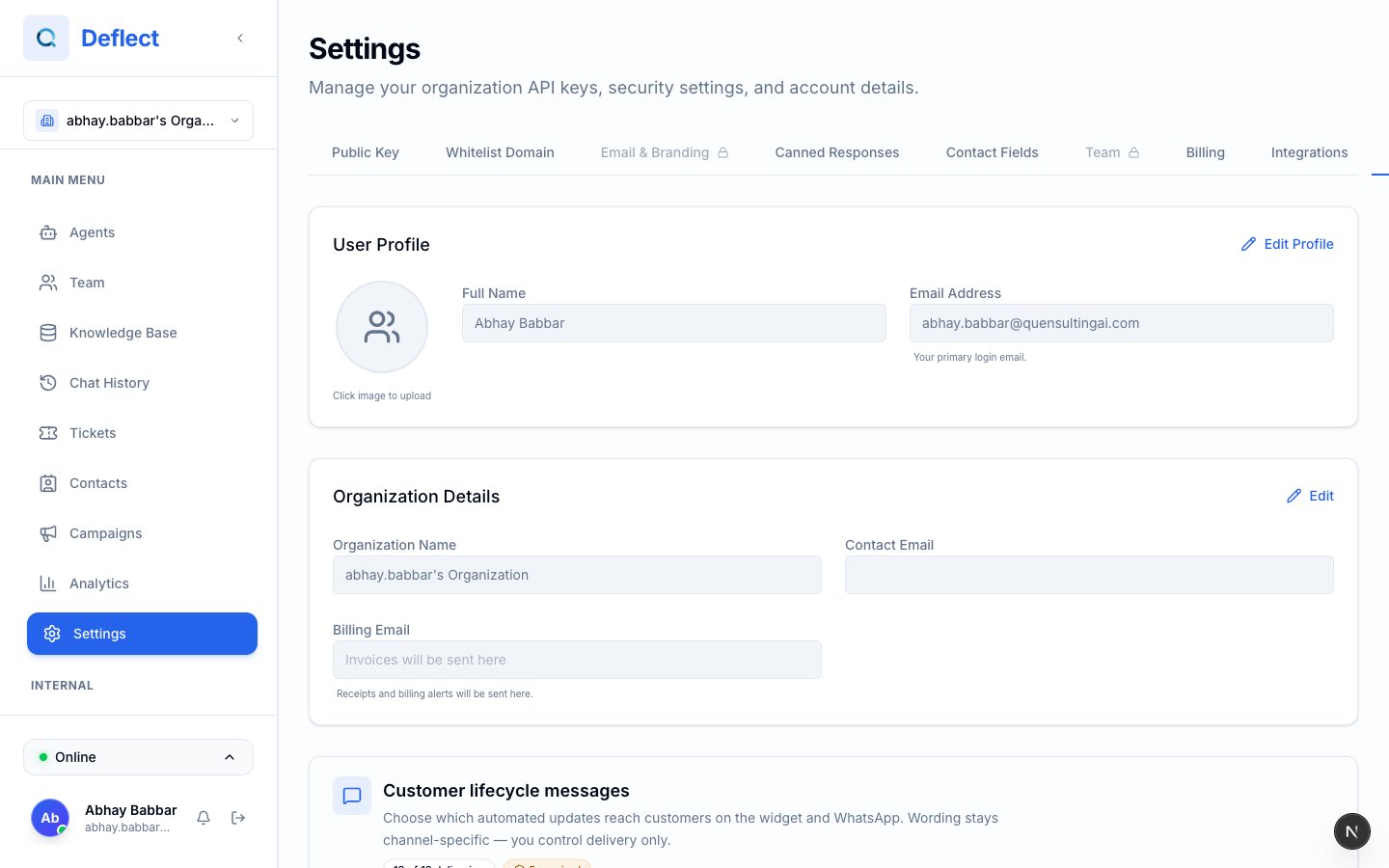
Under **Settings → General** (or the section labeled **Customer lifecycle messages**), admins can choose which **automated status updates** customers see — for example when a chat is handed off, resolved, or reopened.
* Turn the **master switch** on or off for optional messages.
* Toggle individual message types. Some required messages cannot be disabled.
* Wording is tailored per channel (web widget vs. WhatsApp); you control **whether** each message is delivered.
### Email top-ups (paid plans)
If you send a lot of email (campaigns, notifications, ticket replies), you can buy extra email sends from the same Billing tab. Monthly plan emails are used first; email top-ups cover overflow.
### Extra seats
Additional team seats beyond what your plan includes are **coming soon**. For now, contact [support@quensultingai.com](mailto:support@quensultingai.com) if you need more seats than your plan provides.
## Customer lifecycle messages
Under **Settings → General** (or the section labeled **Customer lifecycle messages**), admins can choose which **automated status updates** customers see — for example when a chat is handed off, resolved, or reopened.
* Turn the **master switch** on or off for optional messages.
* Toggle individual message types. Some required messages cannot be disabled.
* Wording is tailored per channel (web widget vs. WhatsApp); you control **whether** each message is delivered.
 ## Other settings tabs
| Tab | What it covers | Learn more |
| -------------------- | ---------------------------------- | ------------------------------------------- |
| **Widget** | Embed code and widget options | [Widget installation](/widget-installation) |
| **API Keys** | Keys for the website widget | [Widget installation](/widget-installation) |
| **Domains** | Which websites may use your widget | [Widget installation](/widget-installation) |
| **Team** | Invite and manage members | [Team management](/team-management) |
| **Contact Fields** | Custom fields on contact profiles | [Contacts](/contacts) |
| **Canned Responses** | Shortcuts for live chat | [Canned responses](/canned-responses) |
| **Email Branding** | Sending domains and templates | [Email branding](/email-branding) |
| **Integrations** | WhatsApp, Freshdesk, FreshChat | [Integrations](/integrations) |
## Other settings tabs
| Tab | What it covers | Learn more |
| -------------------- | ---------------------------------- | ------------------------------------------- |
| **Widget** | Embed code and widget options | [Widget installation](/widget-installation) |
| **API Keys** | Keys for the website widget | [Widget installation](/widget-installation) |
| **Domains** | Which websites may use your widget | [Widget installation](/widget-installation) |
| **Team** | Invite and manage members | [Team management](/team-management) |
| **Contact Fields** | Custom fields on contact profiles | [Contacts](/contacts) |
| **Canned Responses** | Shortcuts for live chat | [Canned responses](/canned-responses) |
| **Email Branding** | Sending domains and templates | [Email branding](/email-branding) |
| **Integrations** | WhatsApp, Freshdesk, FreshChat | [Integrations](/integrations) |