> ## Documentation Index
> Fetch the complete documentation index at: https://docs.deflect.in/llms.txt
> Use this file to discover all available pages before exploring further.
# Team Management
> Invite members, assign roles, and track team availability
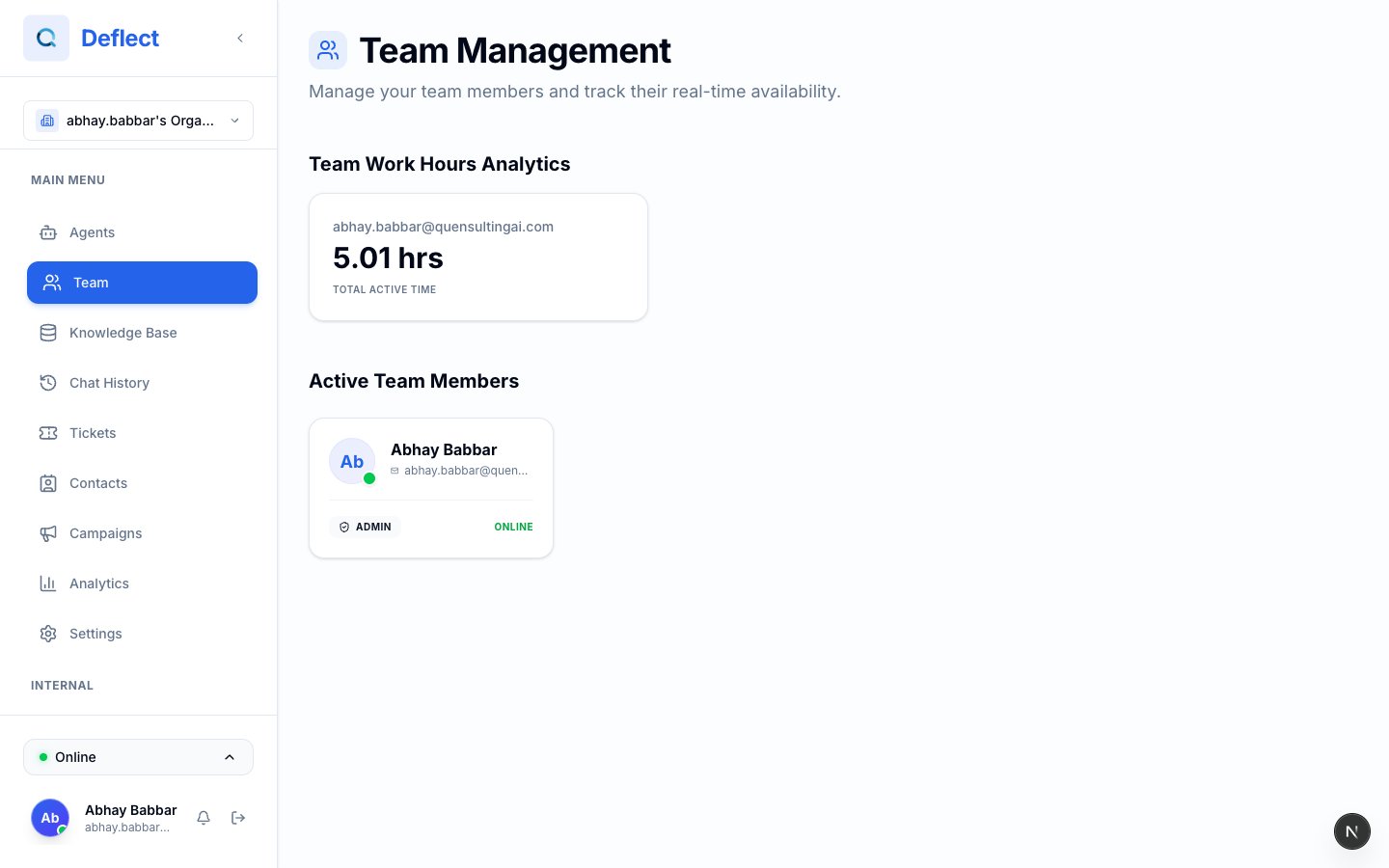
The **Team** page lets you manage who has access to your Deflect organization, see who is available, and review agent activity.
 ## Roles
Deflect uses three organization roles. Each person gets exactly one role.
| Role | Best for | Can do |
| ------------- | ------------------------ | ------------------------------------------------------------------------- |
| **Admin** | Owners and leads | Everything — billing, settings, agents, knowledge base, team invites |
| **Developer** | Builders and integrators | Agents, knowledge base, custom functions, canned responses, most settings |
| **Agent** | Support staff | Live chat, chat history, tickets — no billing or agent configuration |
Only **Admins** can invite, change roles, or remove team members.
## Inviting team members
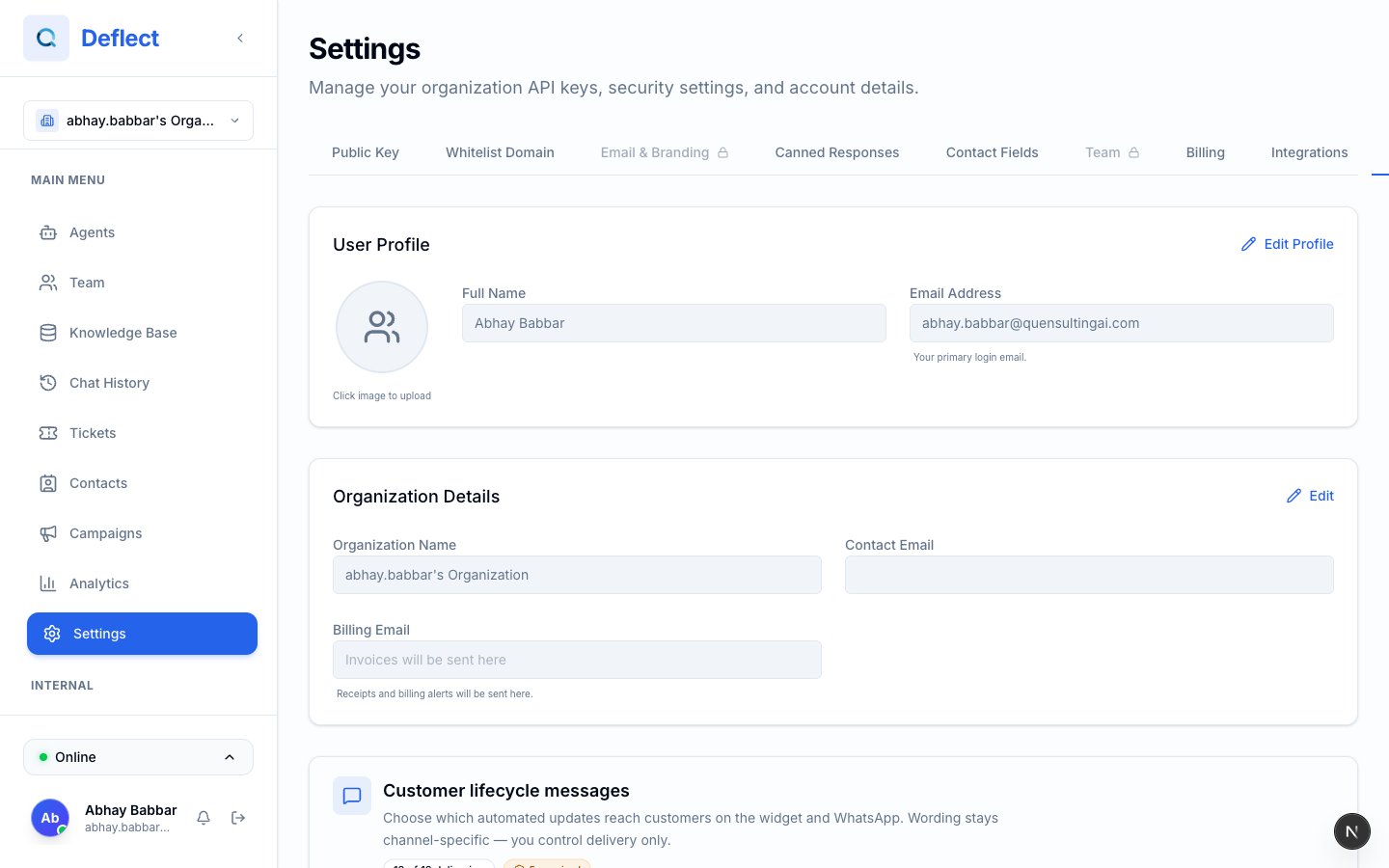
Go to **Settings → Team**.
Type the email address of the person you want to invite.
Pick **Admin**, **Developer**, or **Agent** based on what they need to do.
Click **Invite**. They receive an email to finish setting up their account.
## Roles
Deflect uses three organization roles. Each person gets exactly one role.
| Role | Best for | Can do |
| ------------- | ------------------------ | ------------------------------------------------------------------------- |
| **Admin** | Owners and leads | Everything — billing, settings, agents, knowledge base, team invites |
| **Developer** | Builders and integrators | Agents, knowledge base, custom functions, canned responses, most settings |
| **Agent** | Support staff | Live chat, chat history, tickets — no billing or agent configuration |
Only **Admins** can invite, change roles, or remove team members.
## Inviting team members
Go to **Settings → Team**.
Type the email address of the person you want to invite.
Pick **Admin**, **Developer**, or **Agent** based on what they need to do.
Click **Invite**. They receive an email to finish setting up their account.
 ### How many people can you add?
Each plan includes a set number of **team seats**:
| Plan | Seats included |
| ------- | -------------- |
| Free | 1 |
| Starter | 1 |
| Growth | 3 |
| Scale | 5 |
Purchasing extra seats beyond your plan limit is **coming soon**. If you need more seats today, email [support@quensultingai.com](mailto:support@quensultingai.com).
## Editing and removing members
* **Change role** — Use the role dropdown next to a member's name (Admins only).
* **Remove** — Click remove/delete to revoke their access to the organization.
Removed members lose dashboard access immediately but historical conversations they handled remain in chat history.
## Real-time presence
Open **Team** from the sidebar to see who is available right now:
| Status | Meaning |
| ------------- | ---------------------------- |
| 🟢 **Online** | Actively using the dashboard |
| 🟡 **Away** | Logged in but idle |
| ⚫ **Offline** | Not currently logged in |
Presence helps supervisors know who can accept live chats and handoffs.
## Work hours
The Team page can show **work hours analytics** — how long each person was active in the dashboard over a selected period.
* **Admins** see the full team.
* **Agents** typically see only their own hours.
Use this to understand capacity and workload, not as a payroll system.
## Related guides
* [Live chat](/live-chat) — where agents handle conversations.
* [Human handoff](/human-handoff) — when conversations move from AI to your team.
* [Settings & billing](/settings) — plan limits and seats.
### How many people can you add?
Each plan includes a set number of **team seats**:
| Plan | Seats included |
| ------- | -------------- |
| Free | 1 |
| Starter | 1 |
| Growth | 3 |
| Scale | 5 |
Purchasing extra seats beyond your plan limit is **coming soon**. If you need more seats today, email [support@quensultingai.com](mailto:support@quensultingai.com).
## Editing and removing members
* **Change role** — Use the role dropdown next to a member's name (Admins only).
* **Remove** — Click remove/delete to revoke their access to the organization.
Removed members lose dashboard access immediately but historical conversations they handled remain in chat history.
## Real-time presence
Open **Team** from the sidebar to see who is available right now:
| Status | Meaning |
| ------------- | ---------------------------- |
| 🟢 **Online** | Actively using the dashboard |
| 🟡 **Away** | Logged in but idle |
| ⚫ **Offline** | Not currently logged in |
Presence helps supervisors know who can accept live chats and handoffs.
## Work hours
The Team page can show **work hours analytics** — how long each person was active in the dashboard over a selected period.
* **Admins** see the full team.
* **Agents** typically see only their own hours.
Use this to understand capacity and workload, not as a payroll system.
## Related guides
* [Live chat](/live-chat) — where agents handle conversations.
* [Human handoff](/human-handoff) — when conversations move from AI to your team.
* [Settings & billing](/settings) — plan limits and seats.