Navigating the Dashboard
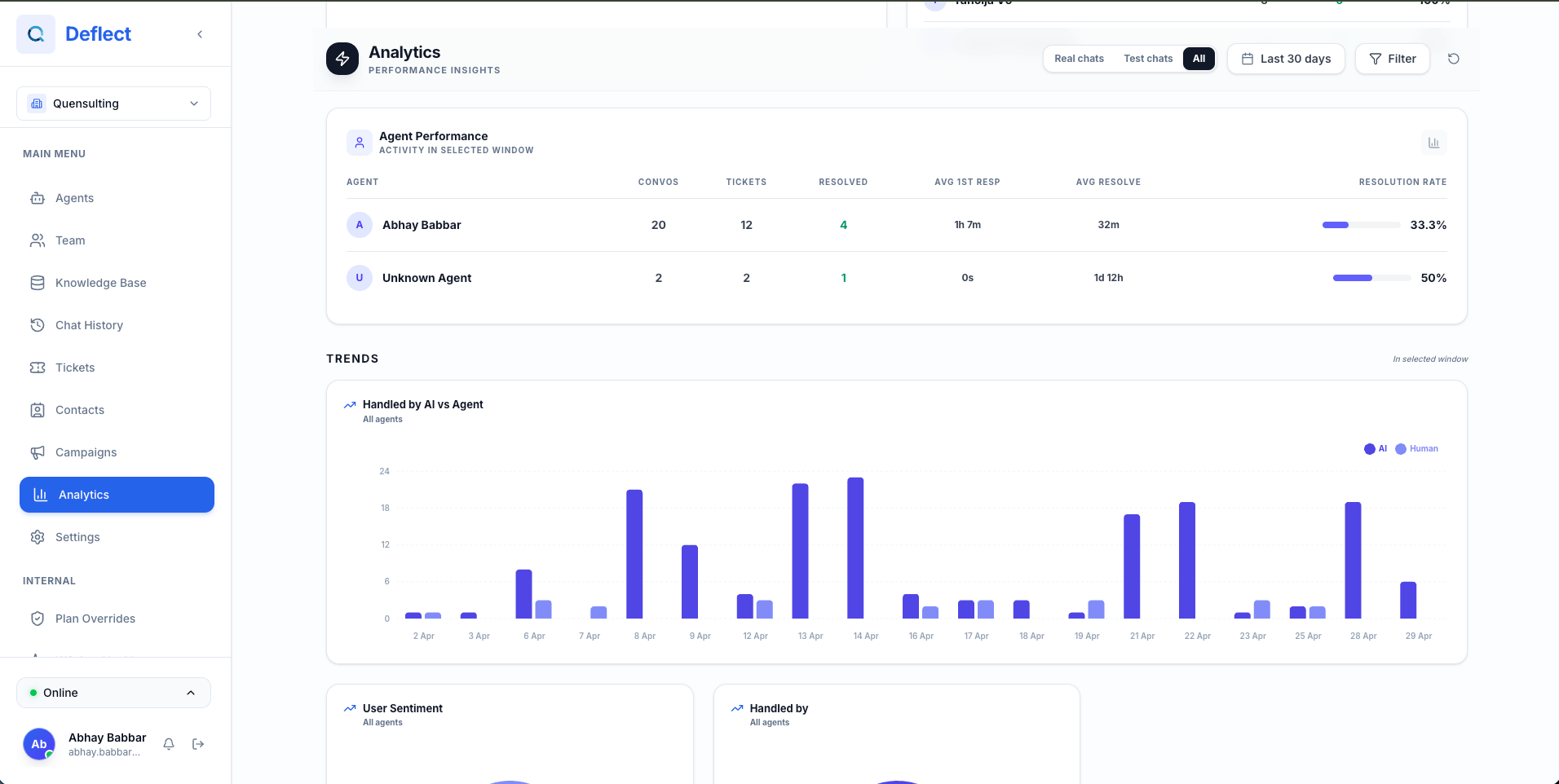
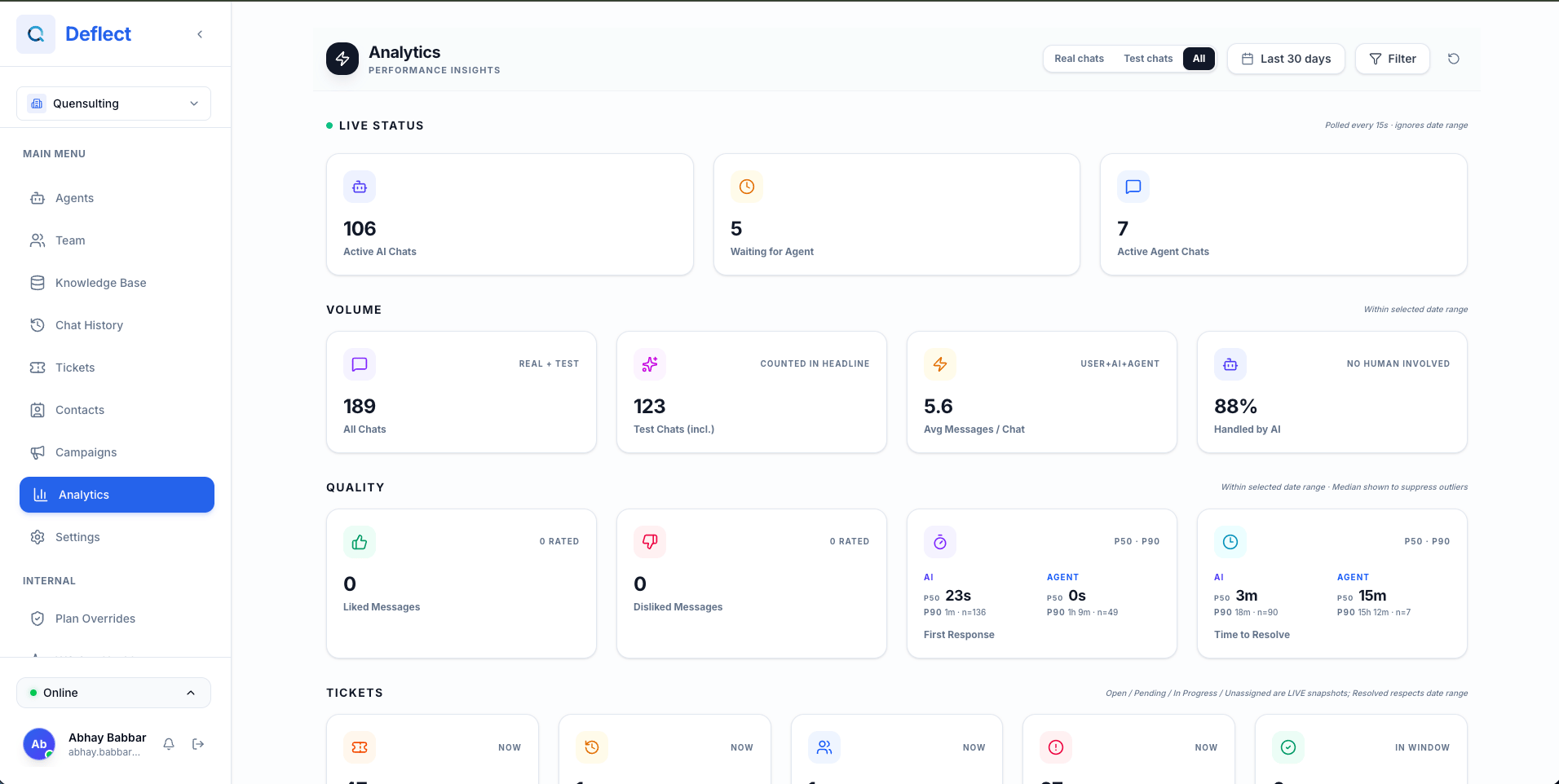
Navigate to the Analytics page from the sidebar. You’ll see your chart widgets arranged in a grid layout along with the Agent Performance section.Date Range & Filters
Use the controls at the top of the page to refine the data:- Date Range Picker: Select a preset (Last 7 days, Last 30 days) or set a custom range.
- Chatbot Filter: Select one or more chatbots to filter metrics to specific agents.
Chart Widgets
The dashboard uses a widget-based system — you can add, rearrange, and remove charts to build the view that matters most to you.Adding a Chart
- Click the + Add Chart button.
- Choose a metric from the dropdown:
- Total Conversations — Number of chat sessions started.
- Total Messages — Total messages exchanged across all conversations.
- Average Response Time — How quickly the AI responds to users.
- Resolution Rate — Percentage of conversations resolved without human intervention.
- CSAT Score — Customer satisfaction rating based on user feedback.
- Choose a chart type: Line, Bar, or Stat (single number).
- Click Add.
Removing a Chart
Click the settings icon (⚙️) on any widget, then select Remove to delete it from your dashboard.Agent Performance
Below the chart widgets, the Agent Performance section shows a leaderboard of your human agents with metrics like:- Conversations Handled — Number of live chats managed.
- Average Response Time — Speed of replies during live chat.
- Resolution Rate — Percentage of conversations resolved.

Analytics data refreshes automatically. The date range and filters apply to both chart widgets and agent performance metrics.