

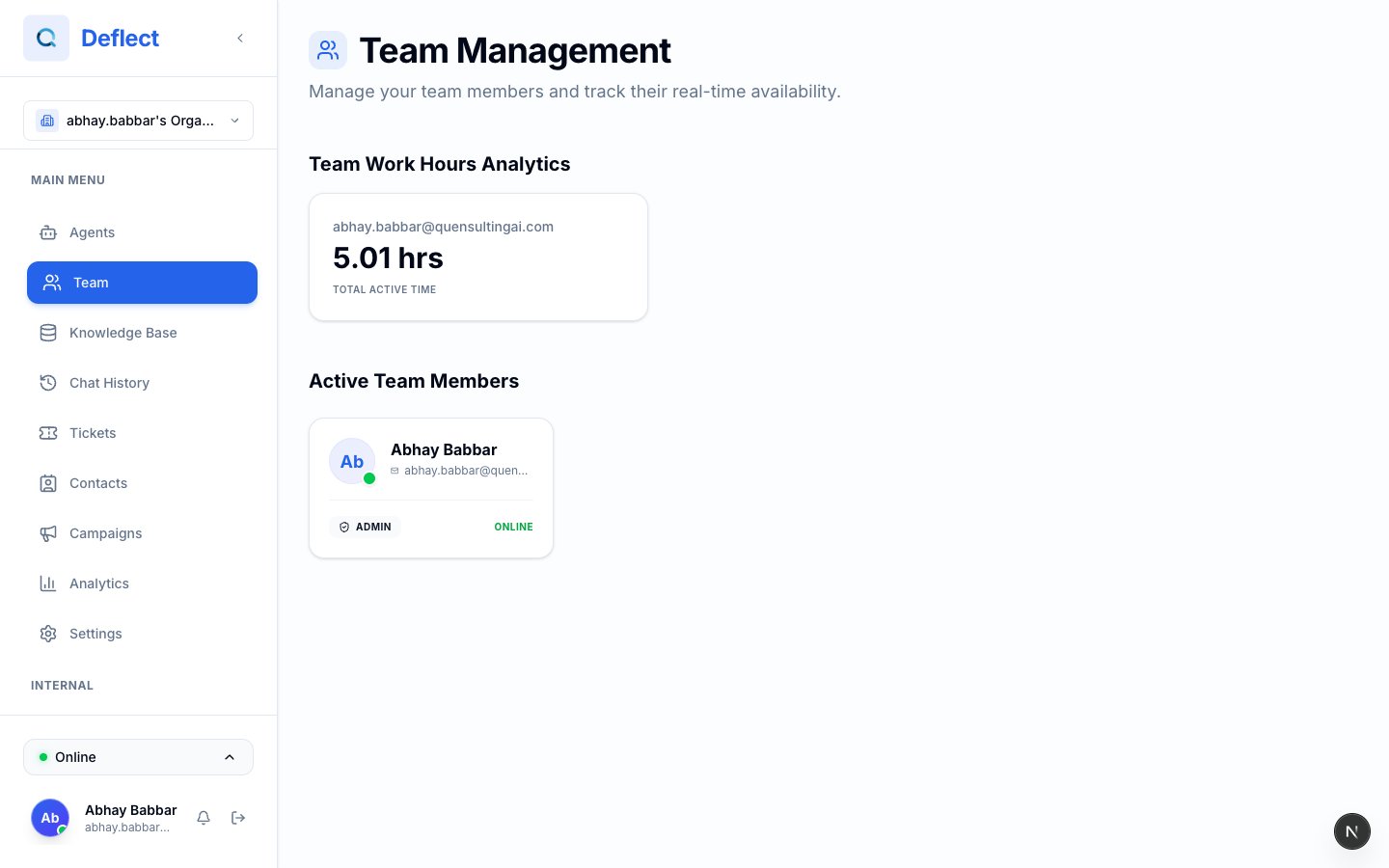
Team page — member list with roles and online status.
Roles
Deflect uses three organization roles. Each person gets exactly one role.Inviting team members
1
Open Team settings
Go to Settings → Team.
2
Enter an email
Type the email address of the person you want to invite.
3
Choose a role
Pick Admin, Developer, or Agent based on what they need to do.
4
Send the invite
Click Invite. They receive an email to finish setting up their account.
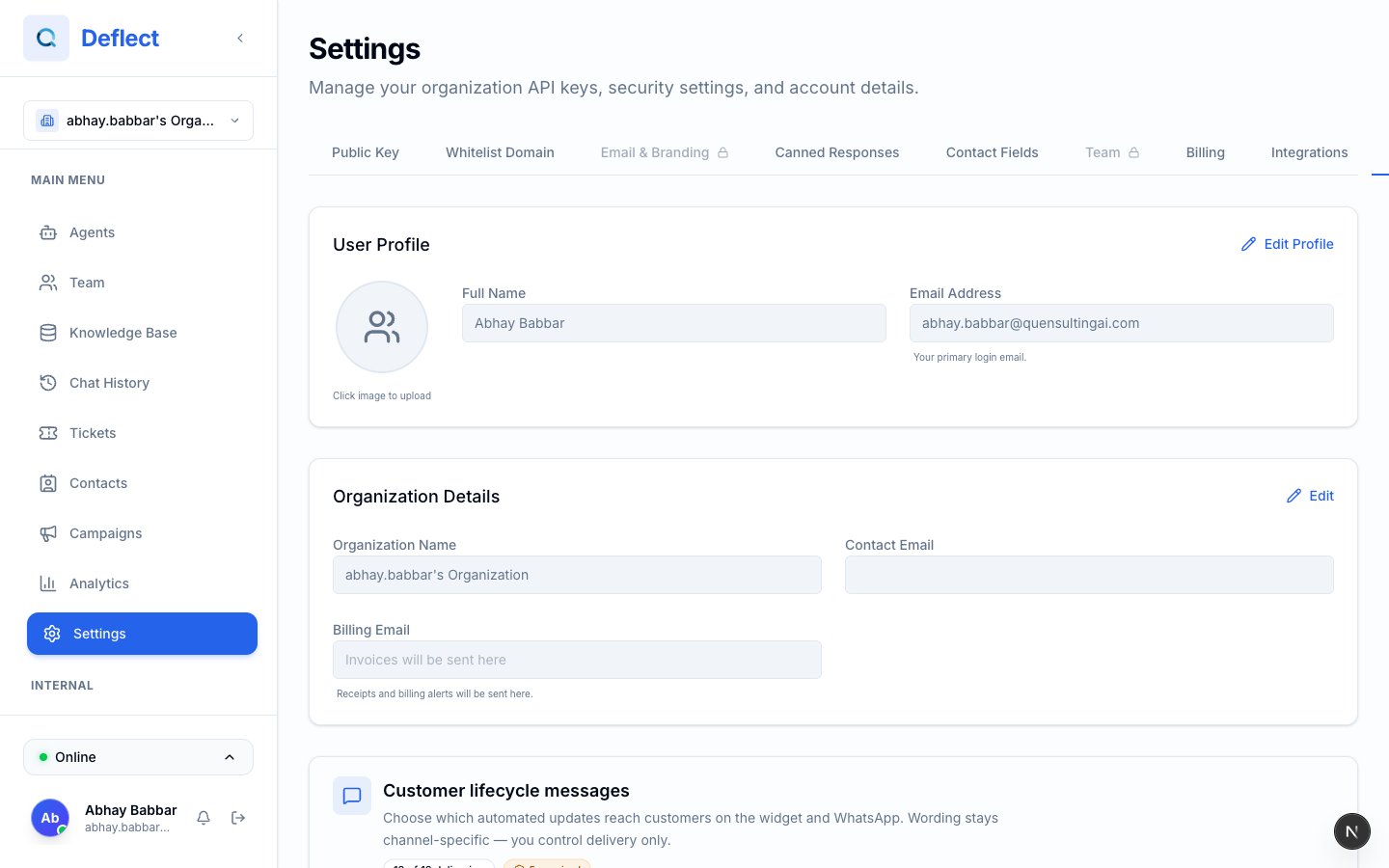
Invite flow — email field, role dropdown, and Invite button.
How many people can you add?
Each plan includes a set number of team seats:
Purchasing extra seats beyond your plan limit is coming soon. If you need more seats today, email support@quensultingai.com.
Editing and removing members
- Change role — Use the role dropdown next to a member’s name (Admins only).
- Remove — Click remove/delete to revoke their access to the organization.
Real-time presence
Open Team from the sidebar to see who is available right now:
Presence helps supervisors know who can accept live chats and handoffs.
Work hours
The Team page can show work hours analytics — how long each person was active in the dashboard over a selected period.- Admins see the full team.
- Agents typically see only their own hours.
Related guides
- Live chat — where agents handle conversations.
- Human handoff — when conversations move from AI to your team.
- Settings & billing — plan limits and seats.