

Where you can attach files
Attachments work on channels your plan supports — typically web chat, email, and WhatsApp when those channels are connected.
Live chat composer — paperclip button and attached file chip before send.
What customers receive
How the file appears depends on the channel:
Before you send, the dashboard may show a delivery preview per channel (inline attachment vs. download link).
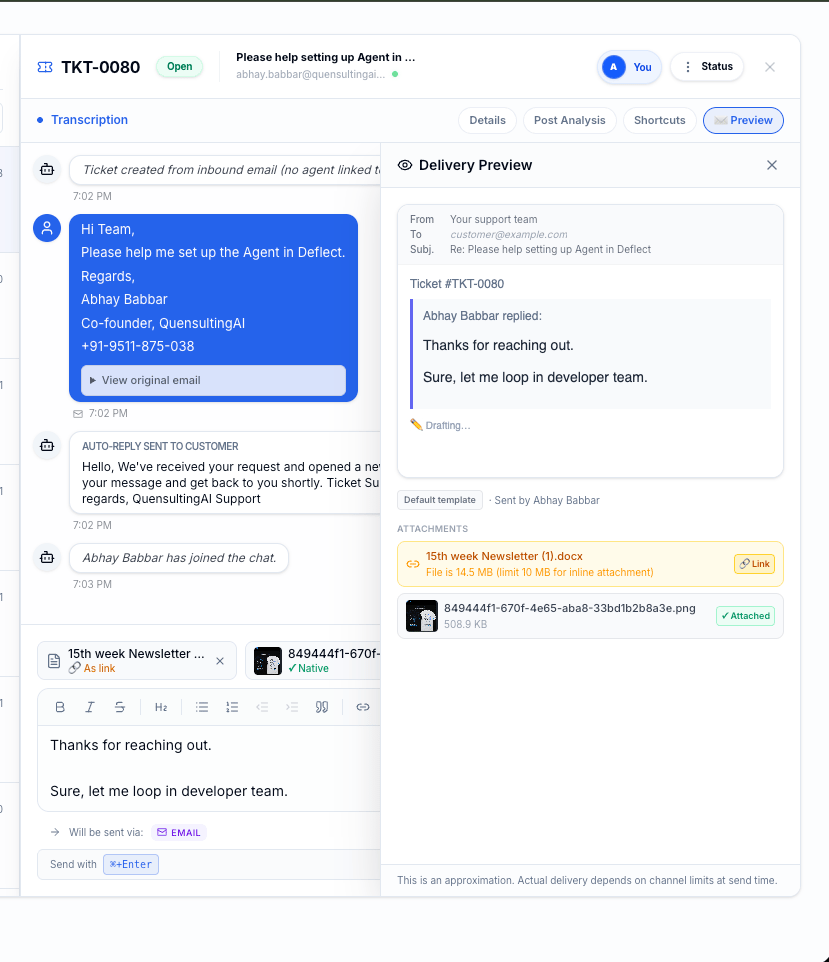
Customer view — attachment in a web chat thread or email client.
Supported file types
Deflect accepts common business formats, including:- Images — JPEG, PNG, WebP, GIF
- Documents — PDF, Word (.docx), Excel (.xlsx), PowerPoint (.pptx)
- Text — Plain text (.txt), CSV (.csv)
Size limits
Maximum file size depends on your plan (shown in billing limits). If an upload fails for size, try compressing the file or sharing a link in your message instead.Safety checks
Every upload is validated before delivery:- File type is verified — renamed extensions that do not match the actual file are blocked.
- Files are scanned for malware. Infected files are rejected and never sent to customers.
Inline images in email replies
When composing an email reply, you can also insert images inline in the message body (separate from the paperclip attachments). Use this for screenshots or diagrams inside the email text.Tips for agents
- Prefer PDF for formal documents; PNG or JPEG for screenshots.
- Wait until the attachment chip shows Ready before sending.
- If WhatsApp shows a link instead of inline media, the file type or size may require link delivery — that is normal.
- Do not send sensitive data unless your policies allow it; attachments follow the same retention rules as the conversation.
Related guides
- Live chat — where agents reply in real time.
- Tickets — attach files on ticket threads.
- WhatsApp integration — WhatsApp-specific delivery behavior.
- Settings & billing — plan limits for attachments.